Step 1
Open the sign-in page
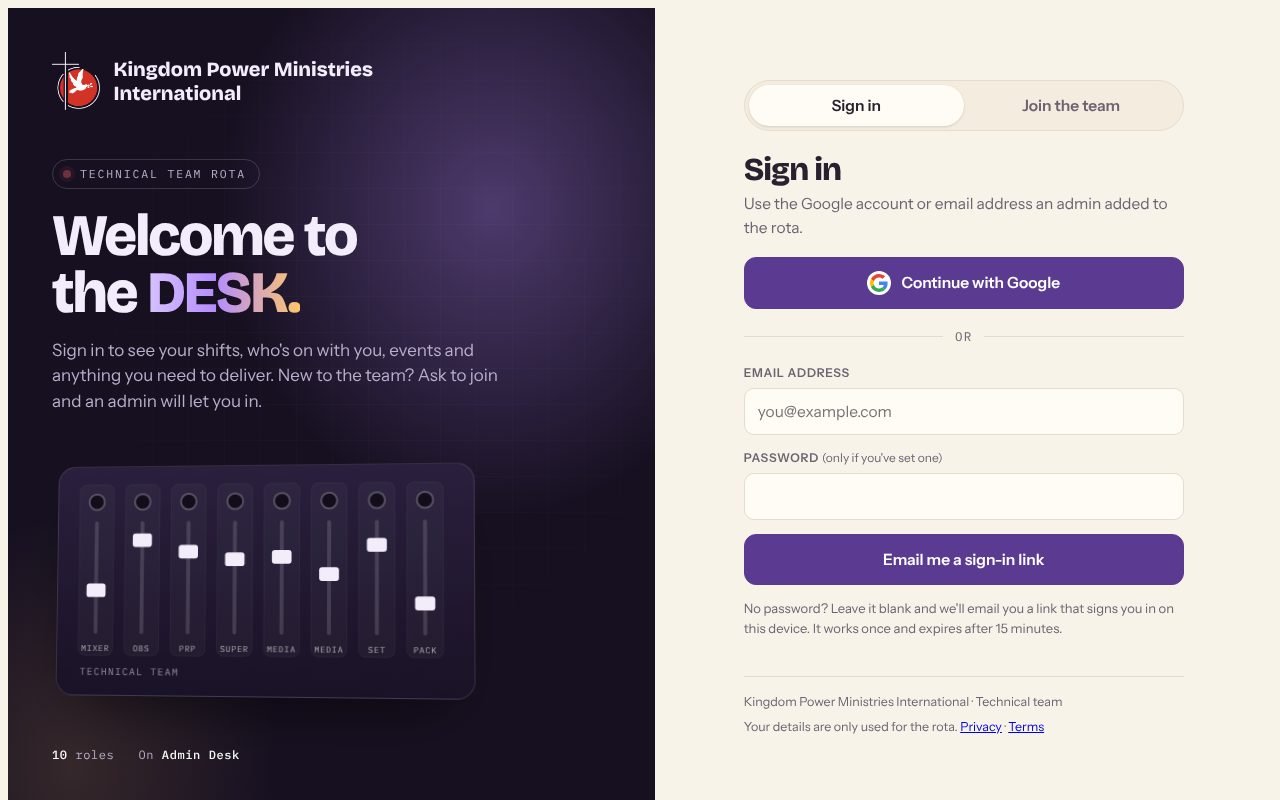
Go to your team's address and choose Sign in. Use Continue with Google if the team has your Google email, or carry on below with your email address.
Member walkthrough
A step-by-step tour for team members: getting in, finding your shifts, and seeing what's coming up. Every screen is the real rota, shown with an example team from Dev Patel's point of view.
Part 1
Three ways in if you're on the team, or ask to join if you're new.
Go to your team's address and choose Sign in. Use Continue with Google if the team has your Google email, or carry on below with your email address.
Use the address the team has for you. Leave the password blank and press Email me a sign-in link.

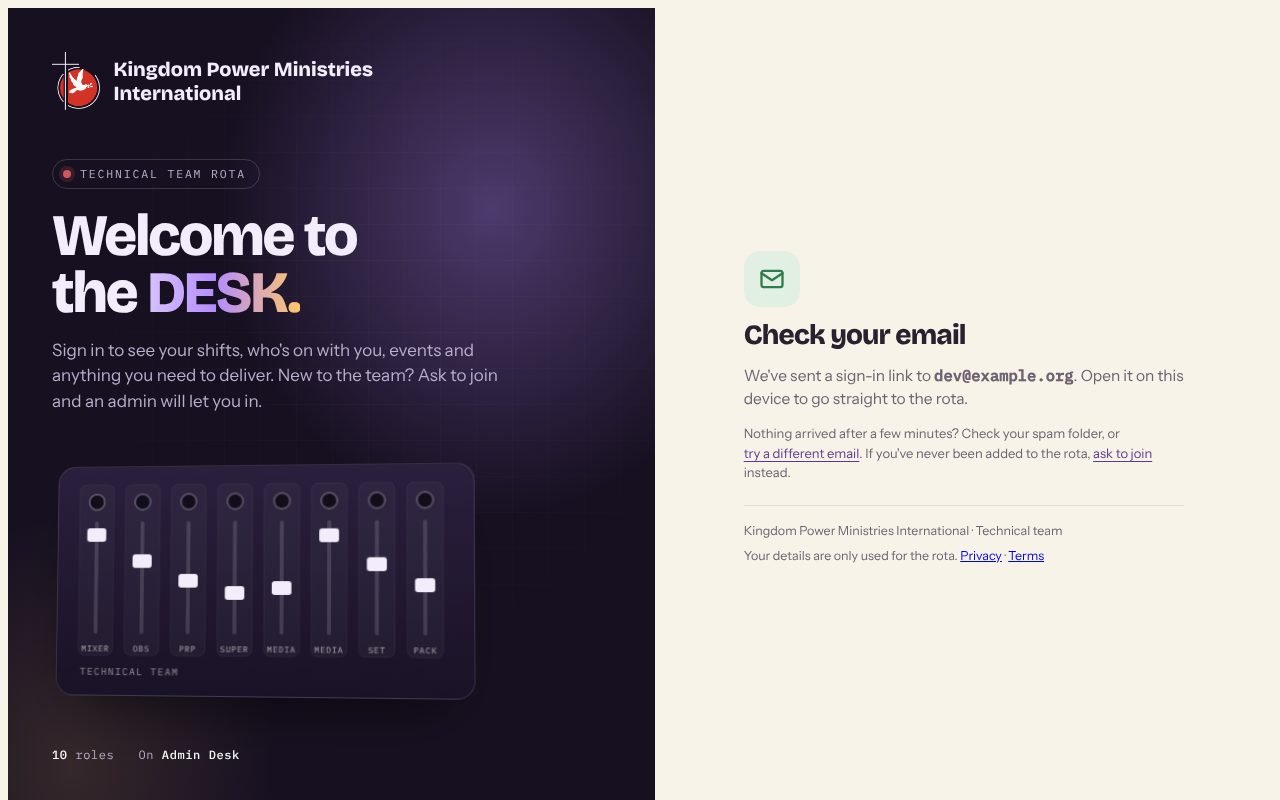
The link works once and expires after 15 minutes. Open it on the device you'll use and you land on Home. You stay signed in on that device for 30 days. With Google, you skip this step.
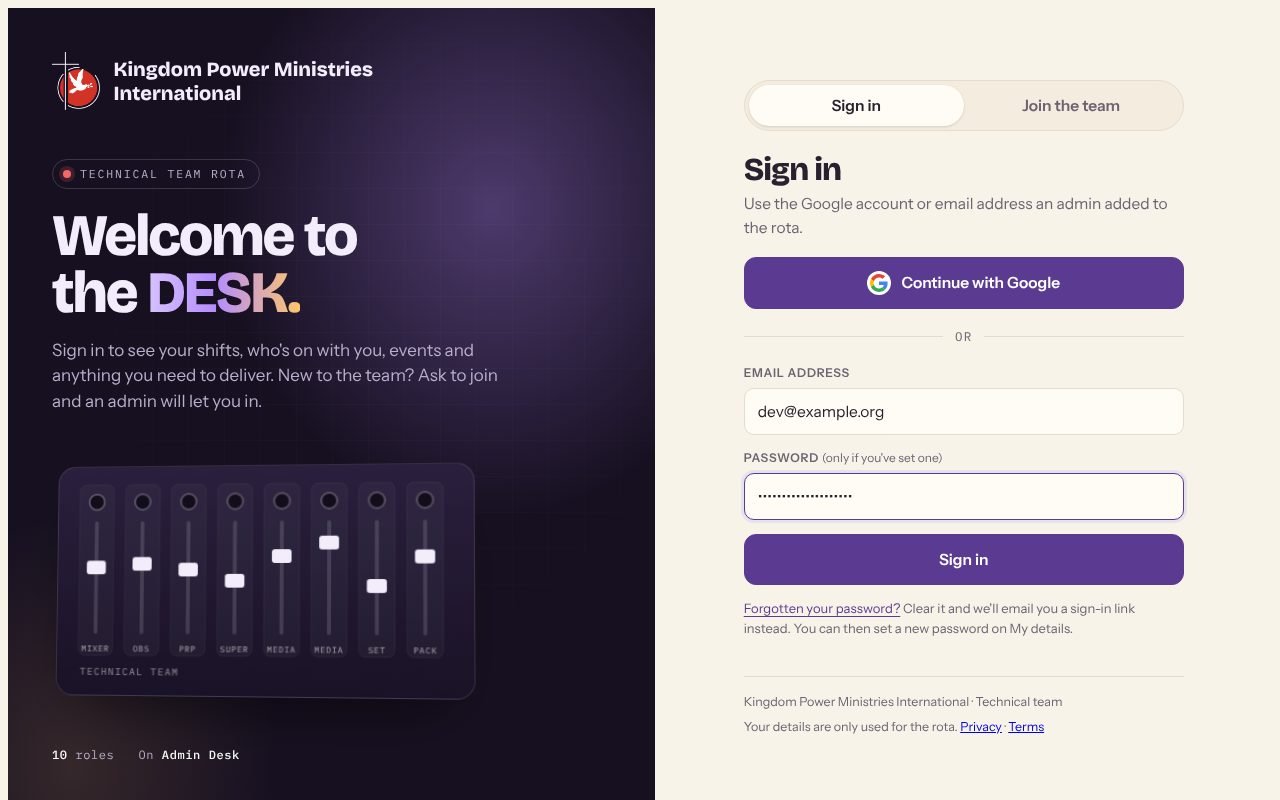
If you've set a password on My details (step 23), type it in and the button becomes Sign in. Forgotten it? Press Forgotten your password? and we'll email you a link instead.
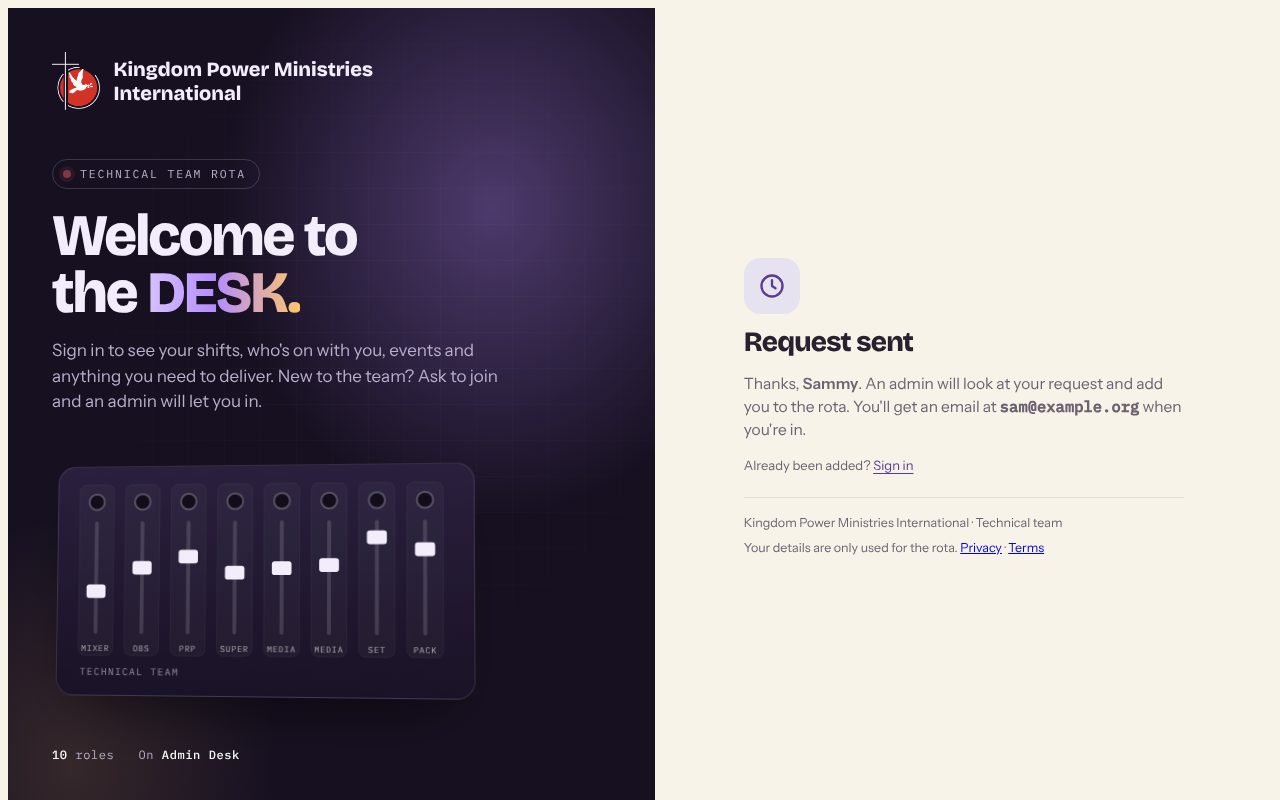
Open Join the team and fill in your name, the name you're known as (optional), your email, your mobile (optional), the roles you'd like to do and your experience. Tick the box to agree to your details being used for the rota, then send.
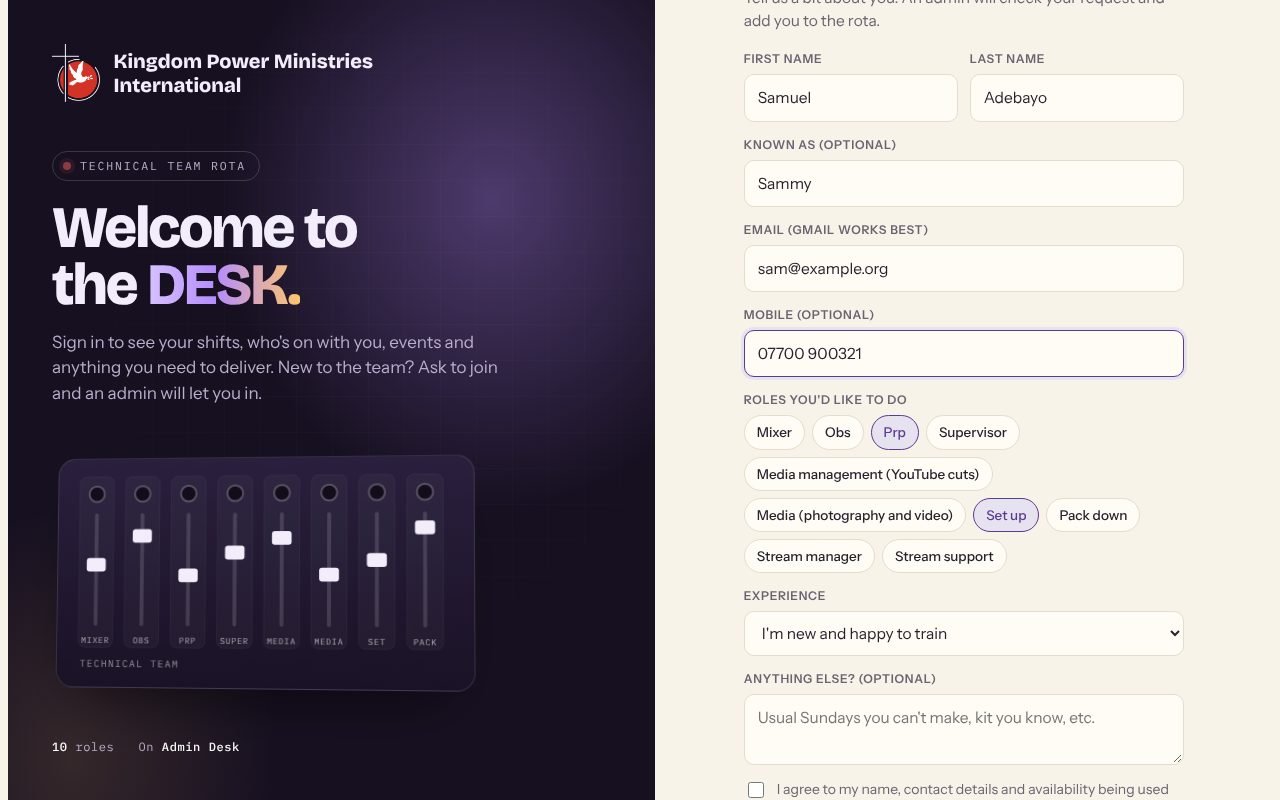
An admin looks at your request and adds you. You get an email when you're in, and from then on you sign in as in steps 1 to 4.
Part 2
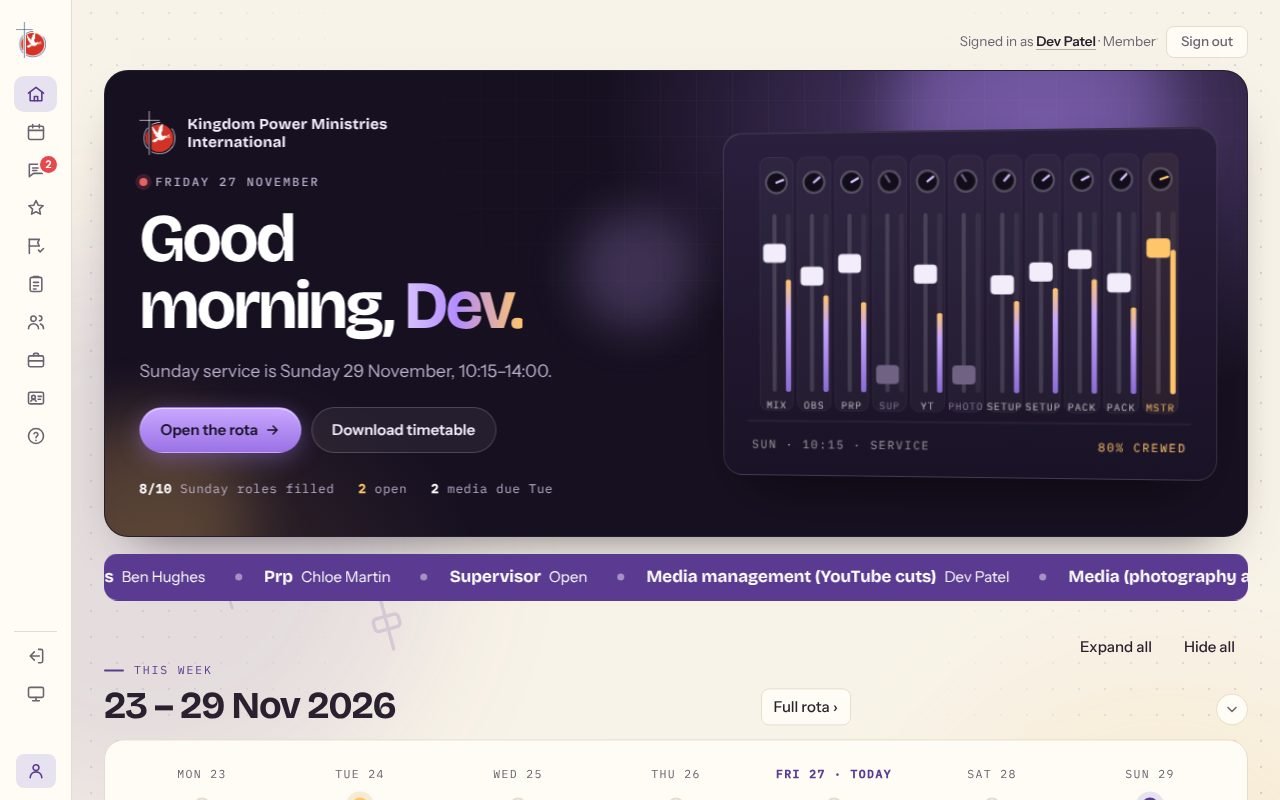
Home sums up your week. Your name and level are at the top right, with Sign out.
A greeting by the name you're known as, Sunday's service time, and a mixing desk with one fader per role, which goes up when someone is on that role. Use Open the rota or Download timetable.
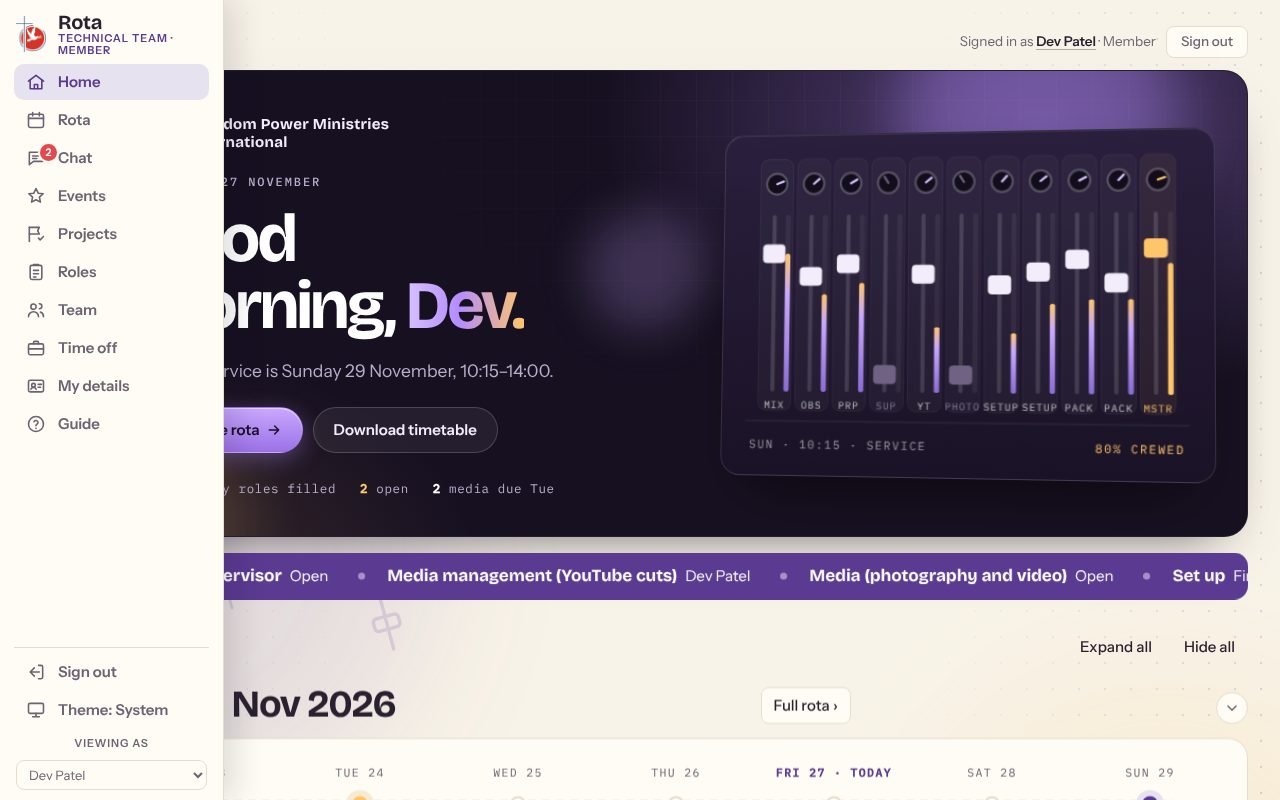
Point at the menu on the left to open it. You're picked under Viewing as at the bottom, so your shifts are highlighted everywhere. Theme switches between light and dark.
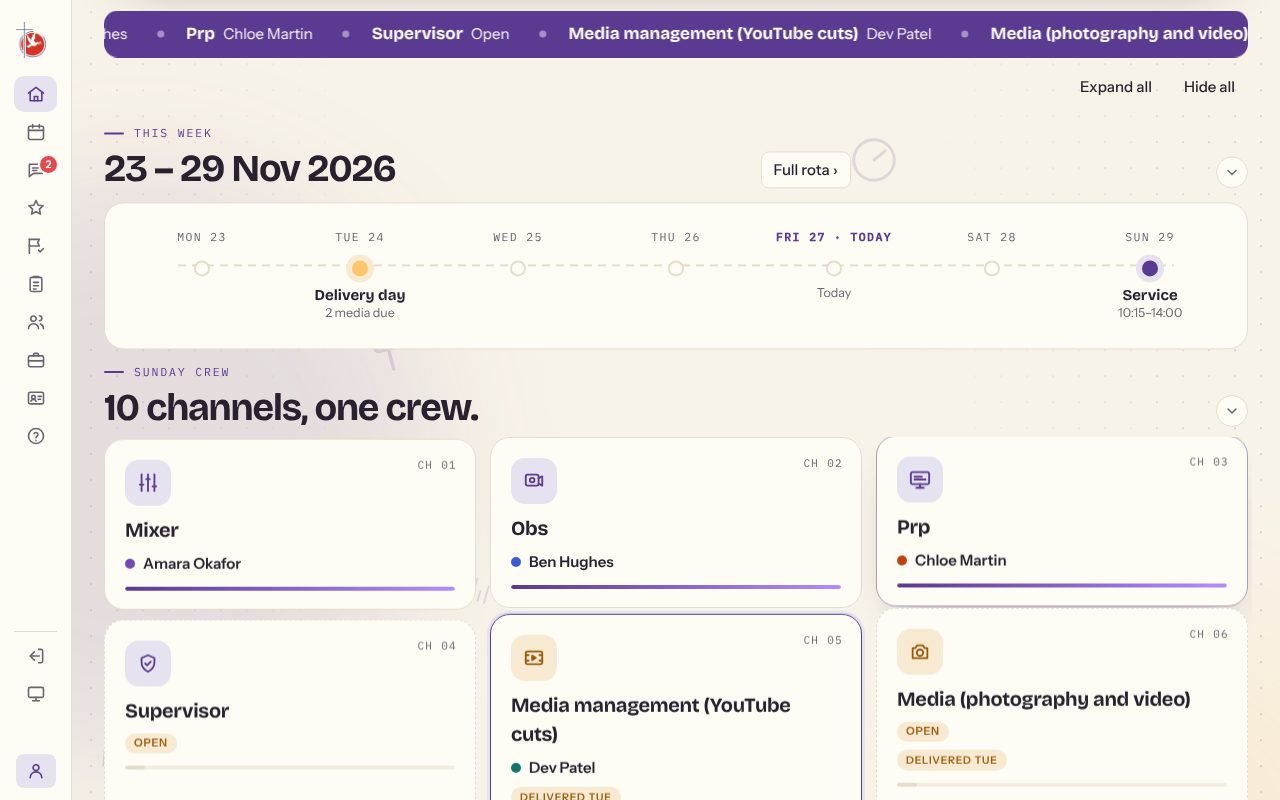
The timeline marks Sunday service and Tuesday's media delivery day. Each Sunday role is a channel card: cards with your name are outlined, and open places are marked in amber.
Your next shift, media due on Tuesday, project deadlines, coming events and who's away. Use the round arrow on any section to hide it, or Expand all and Hide all. Your device remembers the layout.

Part 3
Weeks appear once an admin posts them.
The week's notes sit at the top, so you see log in times and reminders first.
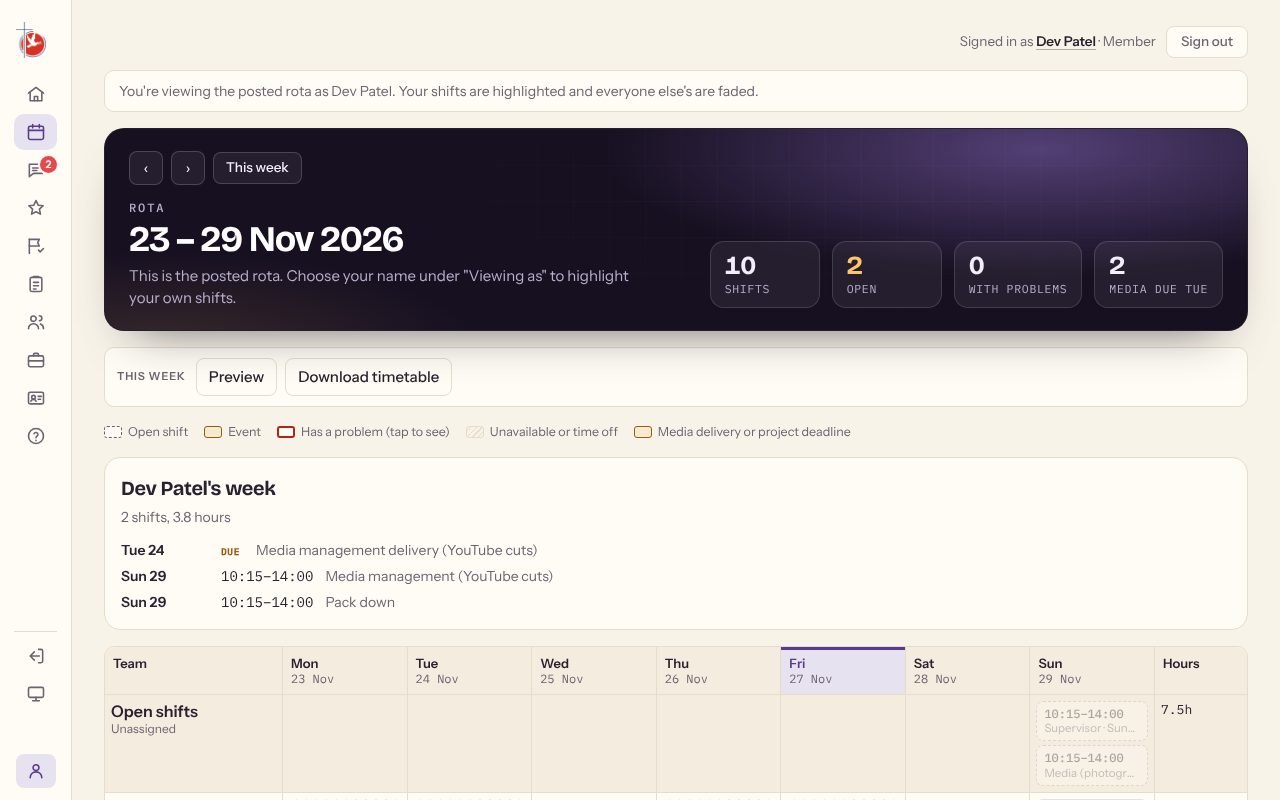
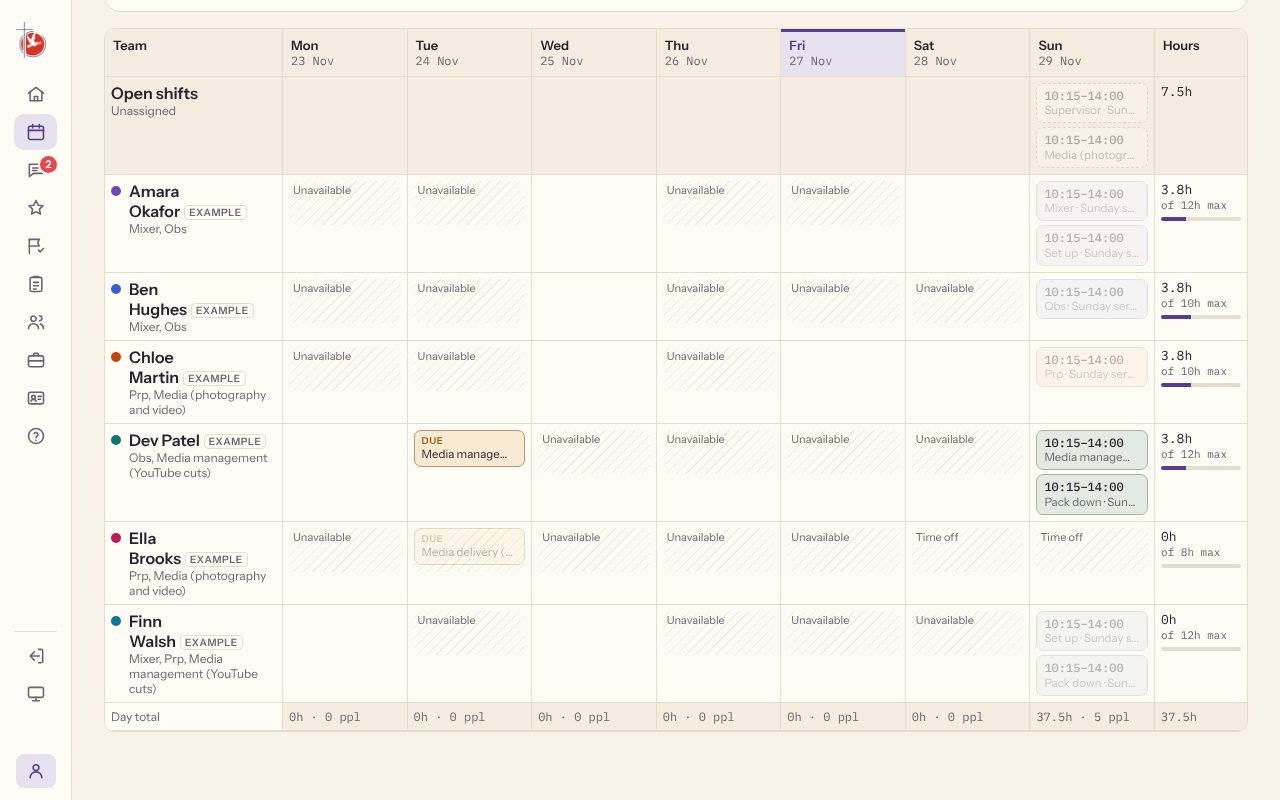
Your own shifts and media due dates in order, above the whole team's grid.
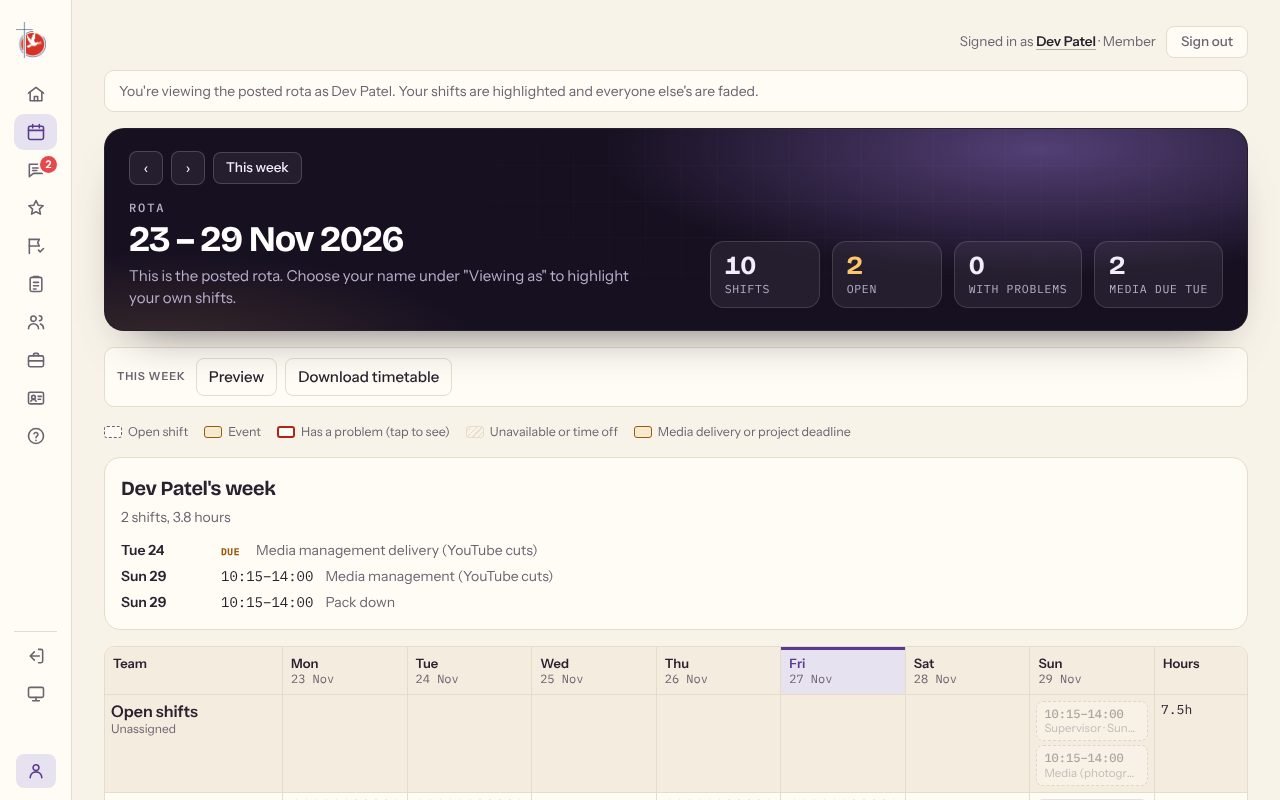
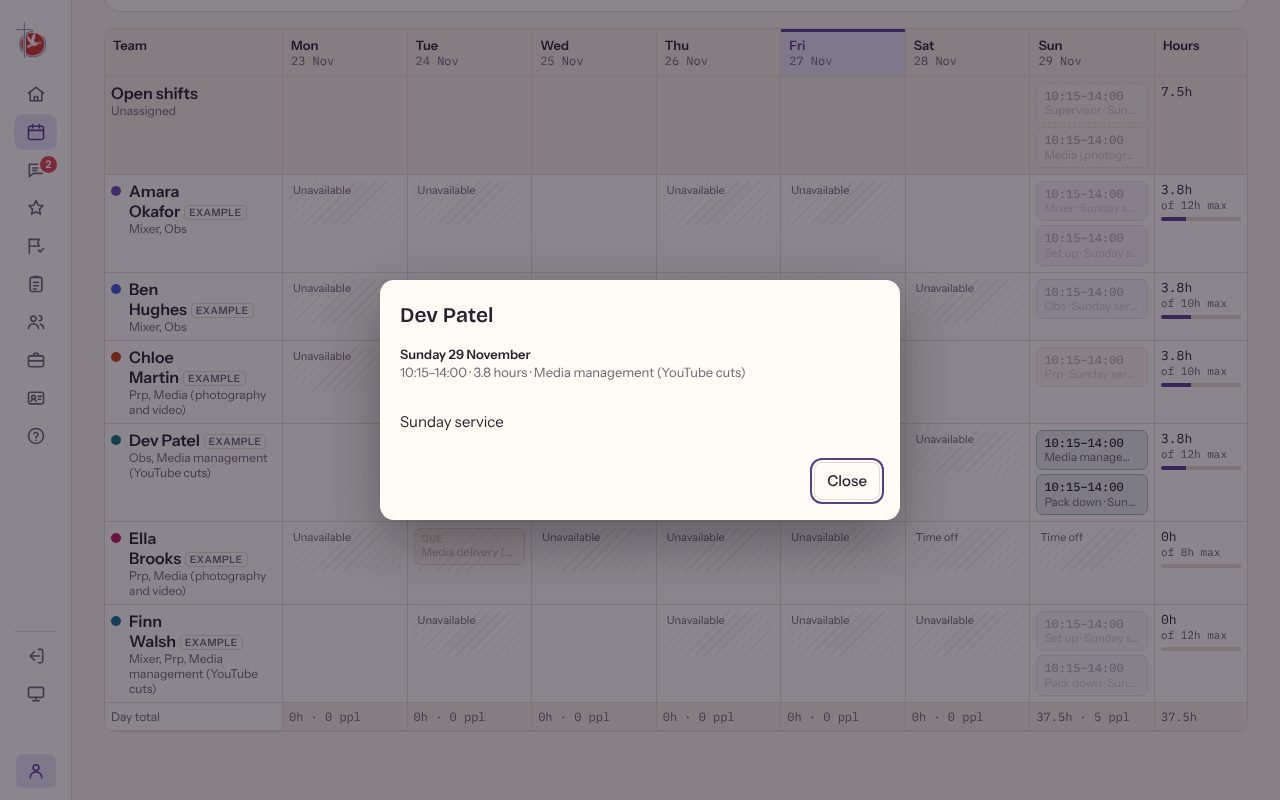
See its day, time, role and note. For a swap, ask a team lead.
If you were on a media role last Sunday, your delivery is due on Tuesday. It's added for you automatically.
Download the week or one day as a PDF or CSV, laid out by day as Time, Task and Person, or copy it as text for a group chat. Preview shows it on screen first.

Part 4
Events, chat, projects, roles, who's away and the weekly email.
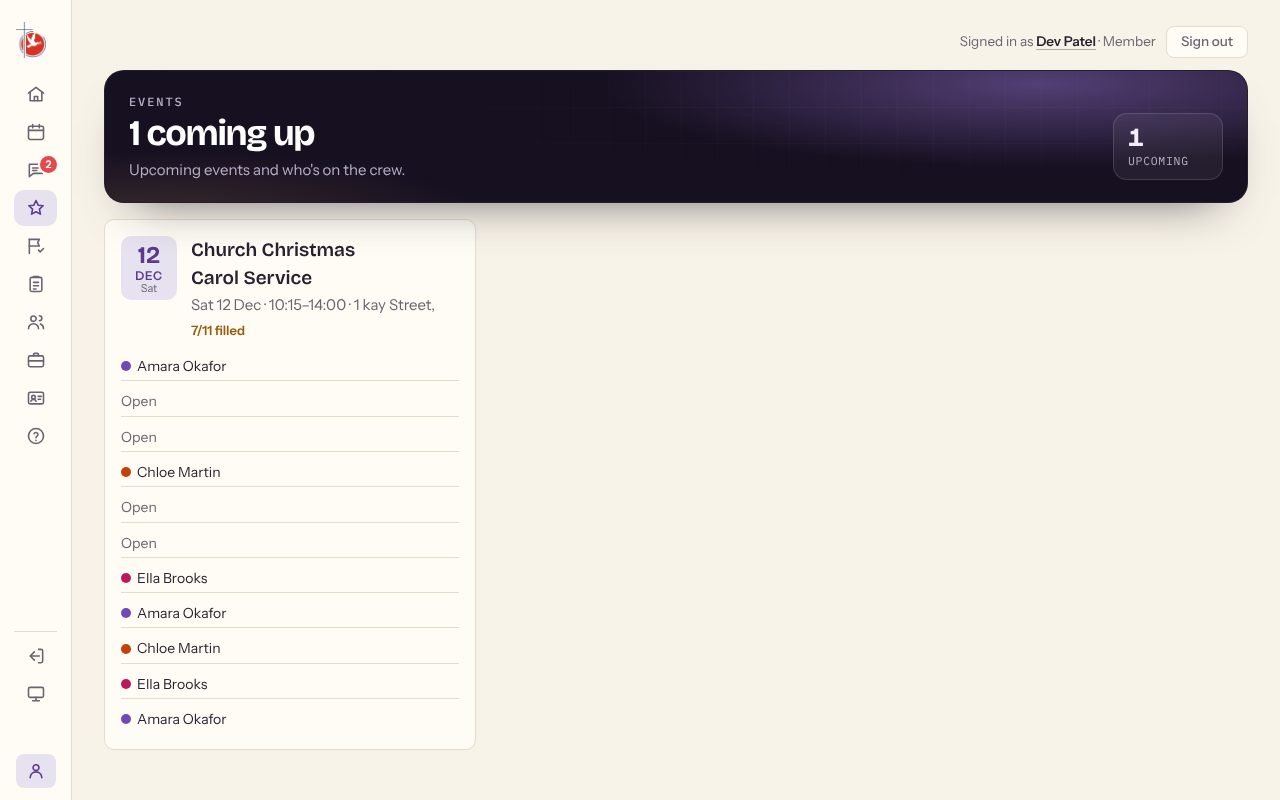
Each posted event shows its days, times and crew.
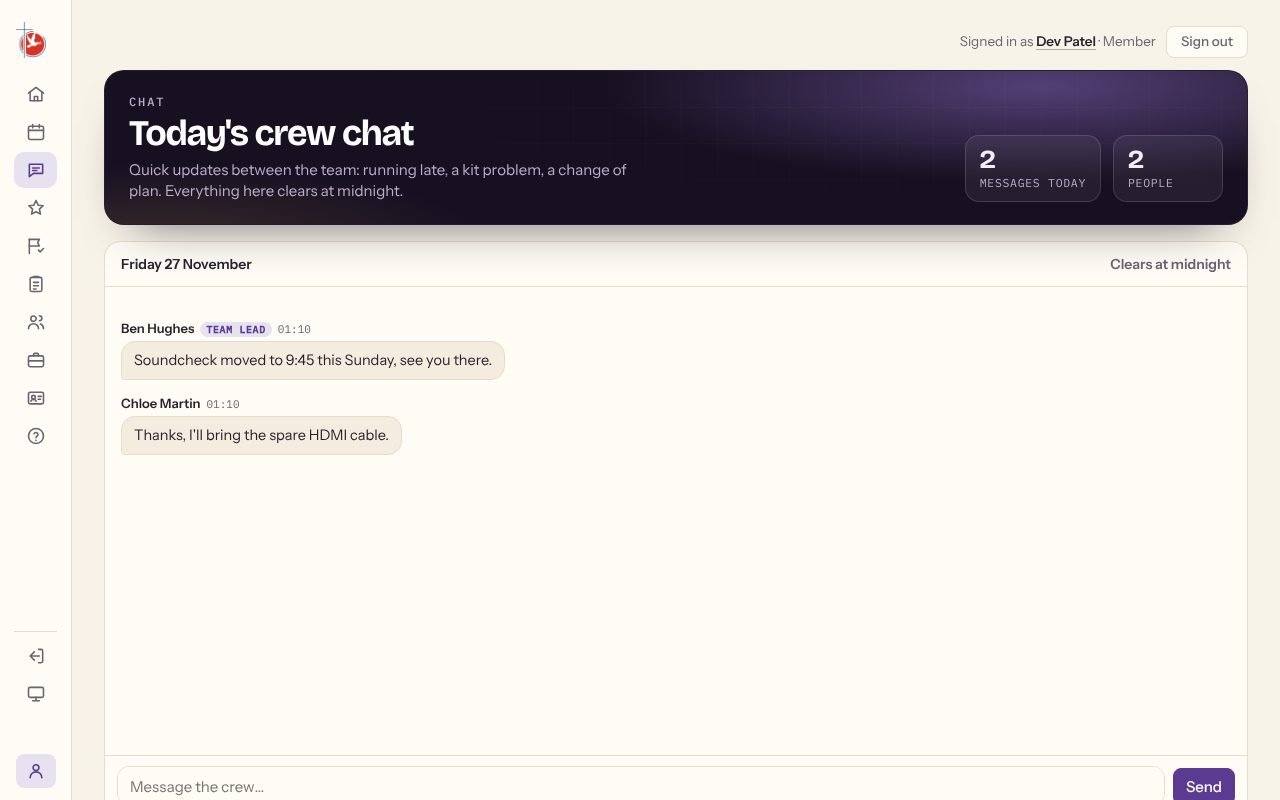
Today's messages for the crew: running late, a kit problem, a change of plan. Everyone signed in can post. Messages clear at midnight.
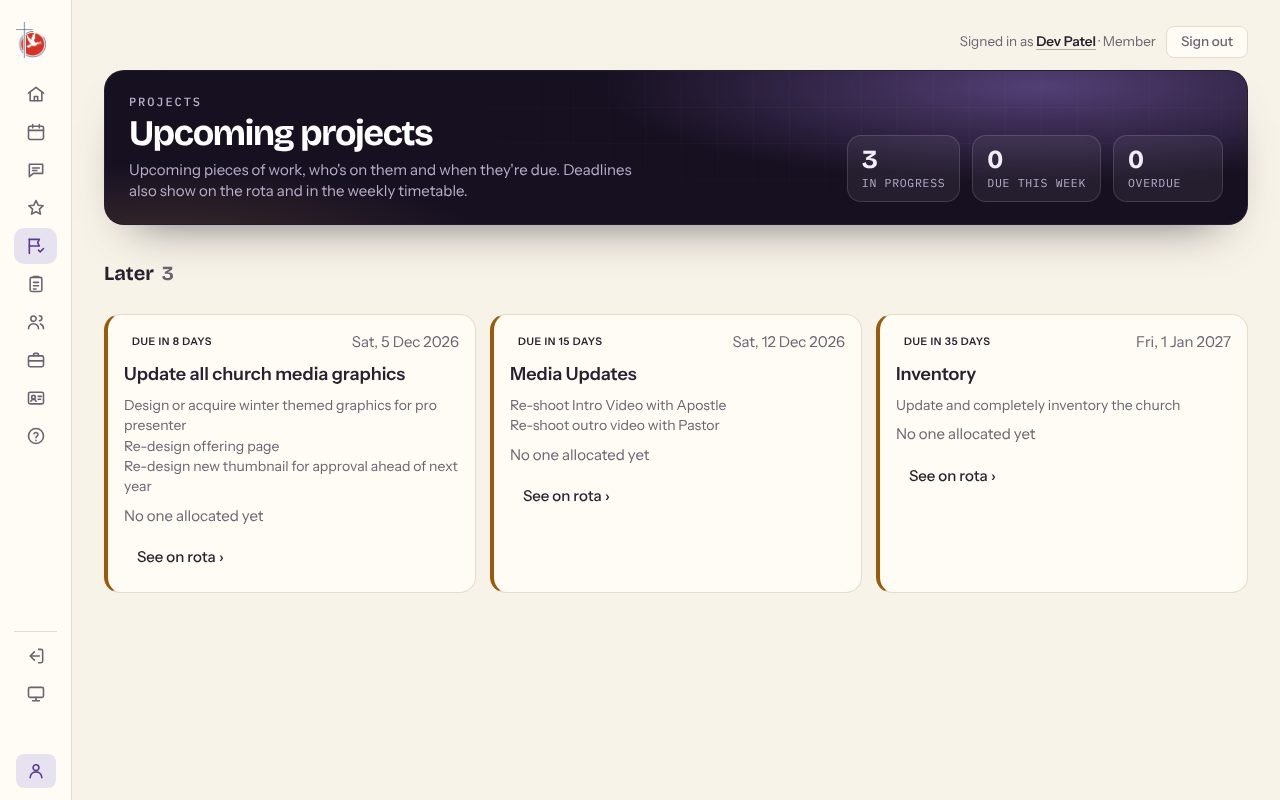
Work with a deadline and who's on it. See on rota jumps to the week it's due.
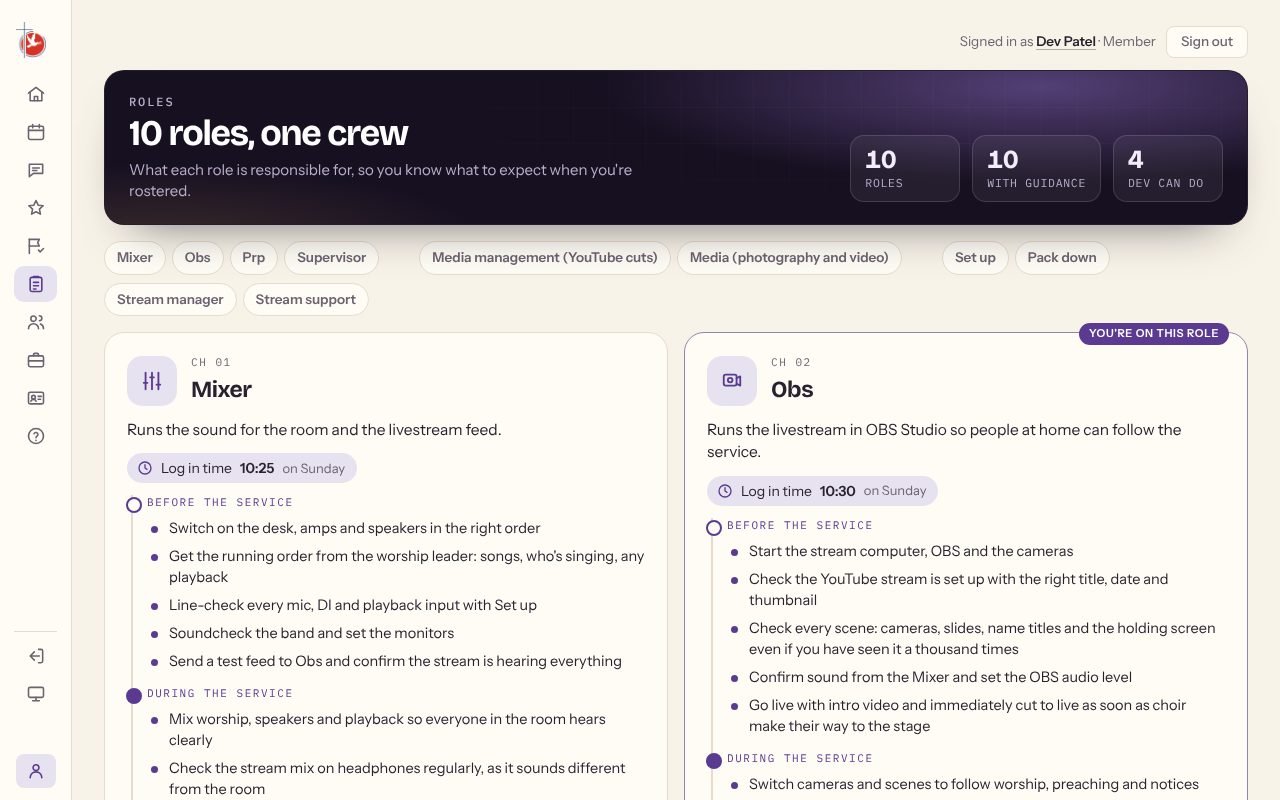
What each role involves: the Log in time on Sunday, and what to do before, during and after the service. Roles you're qualified for are marked You're on this role.
Booked time off. To book your own, ask an admin.
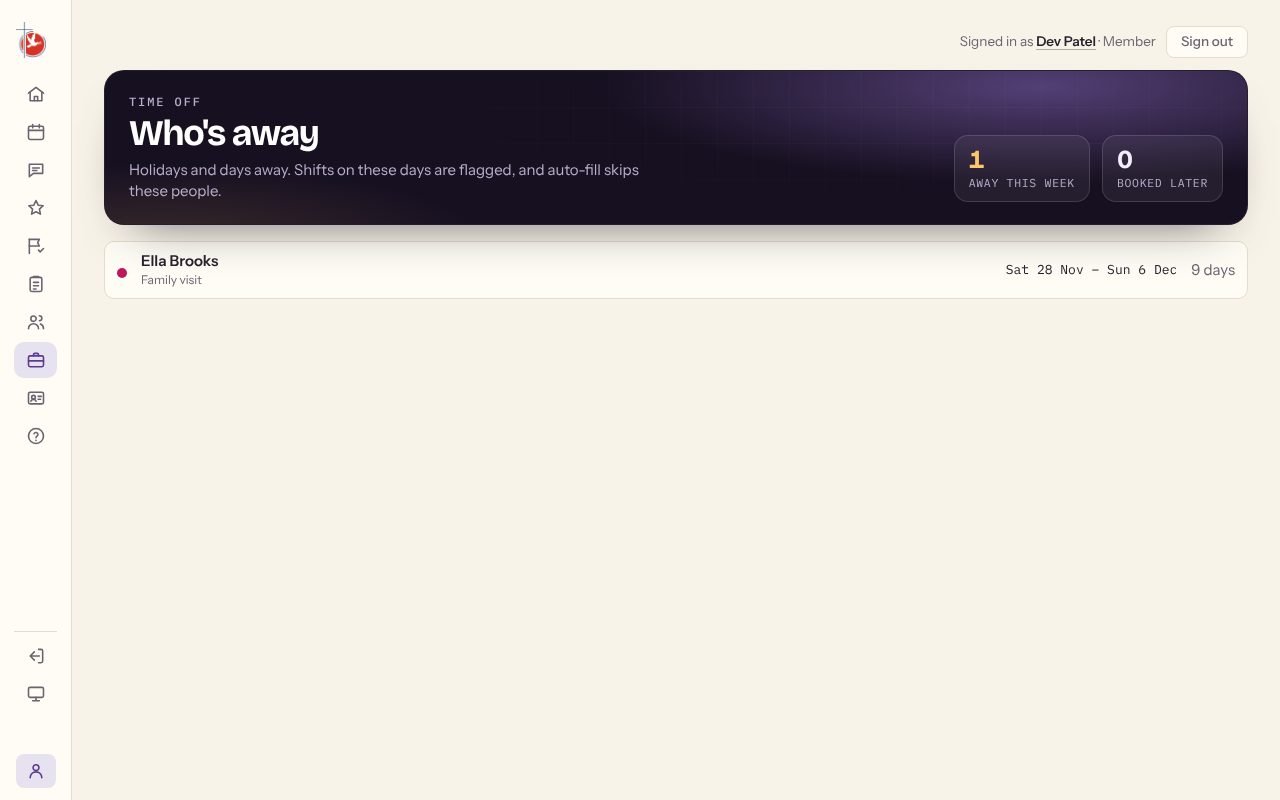
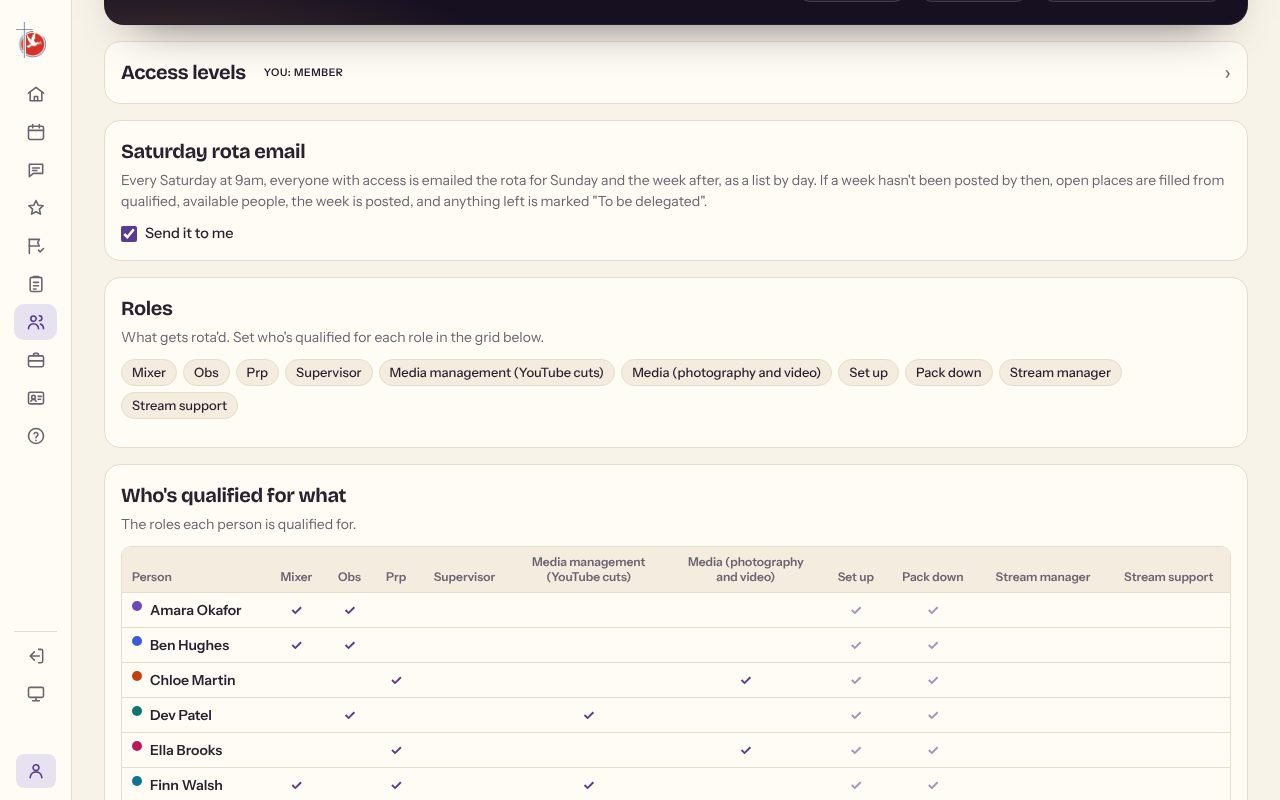
Every Saturday at 9am you're emailed Sunday's rota and the week after, as a list by day with your own shifts at the top. Untick Send it to me on the Team page, or use the link at the bottom of any email, to stop it.
Part 5
Your details, an optional password, and what each level can do.
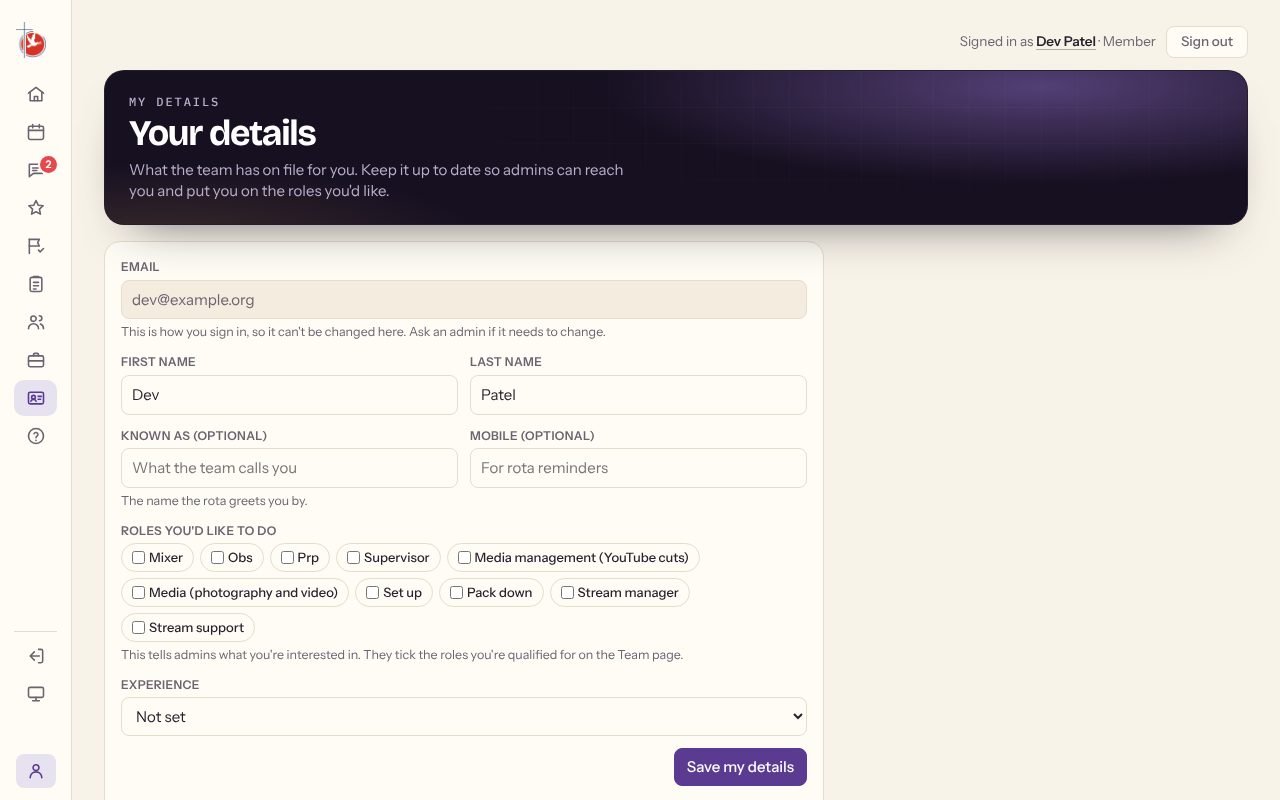
Click your name at the top of any page, or open My details in the menu. Keep your name, the name you're known as, your mobile, the roles you'd like to do and your experience up to date. Your email is how you sign in, so only an admin can change it.
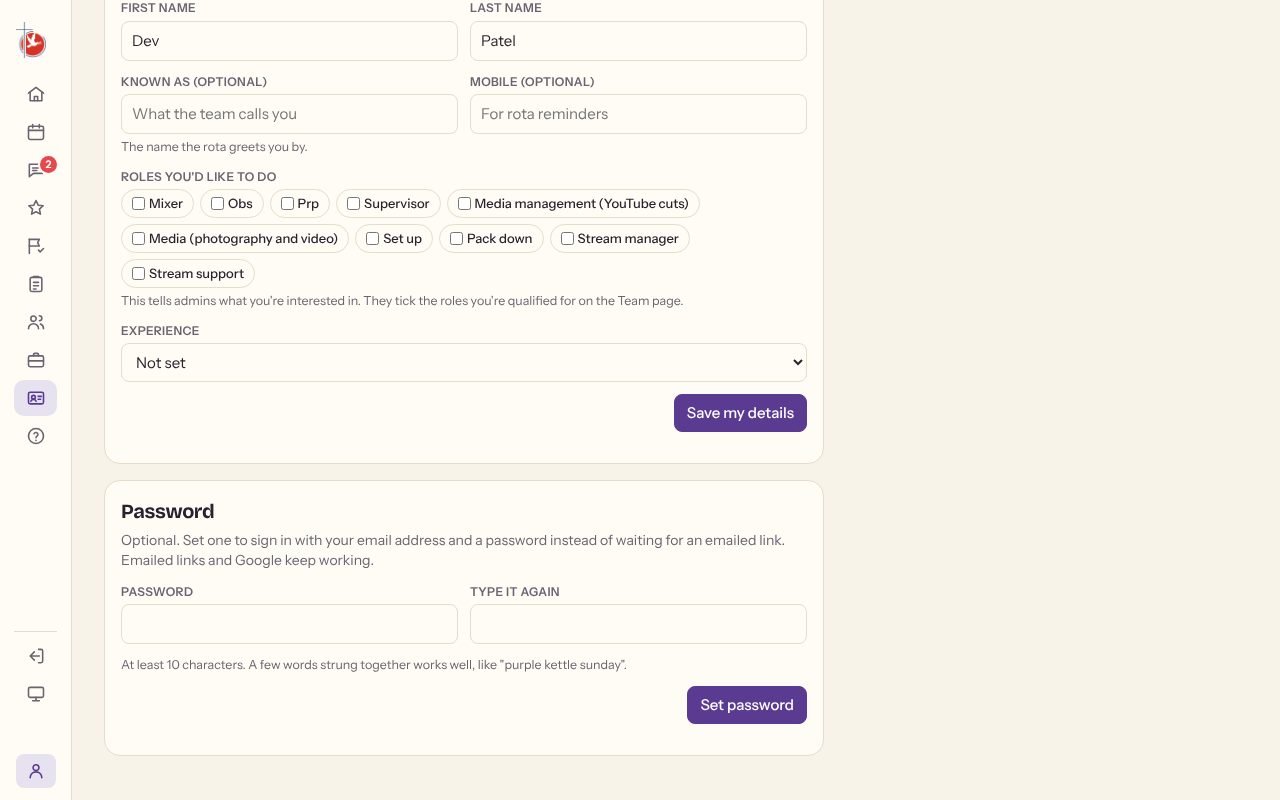
At the bottom of My details, set a password to sign in with your email and password instead of waiting for an email. It's optional; emailed links and Google keep working. You're emailed whenever it's set, changed or removed.
What each level can do, on the Team page. Yours is highlighted.
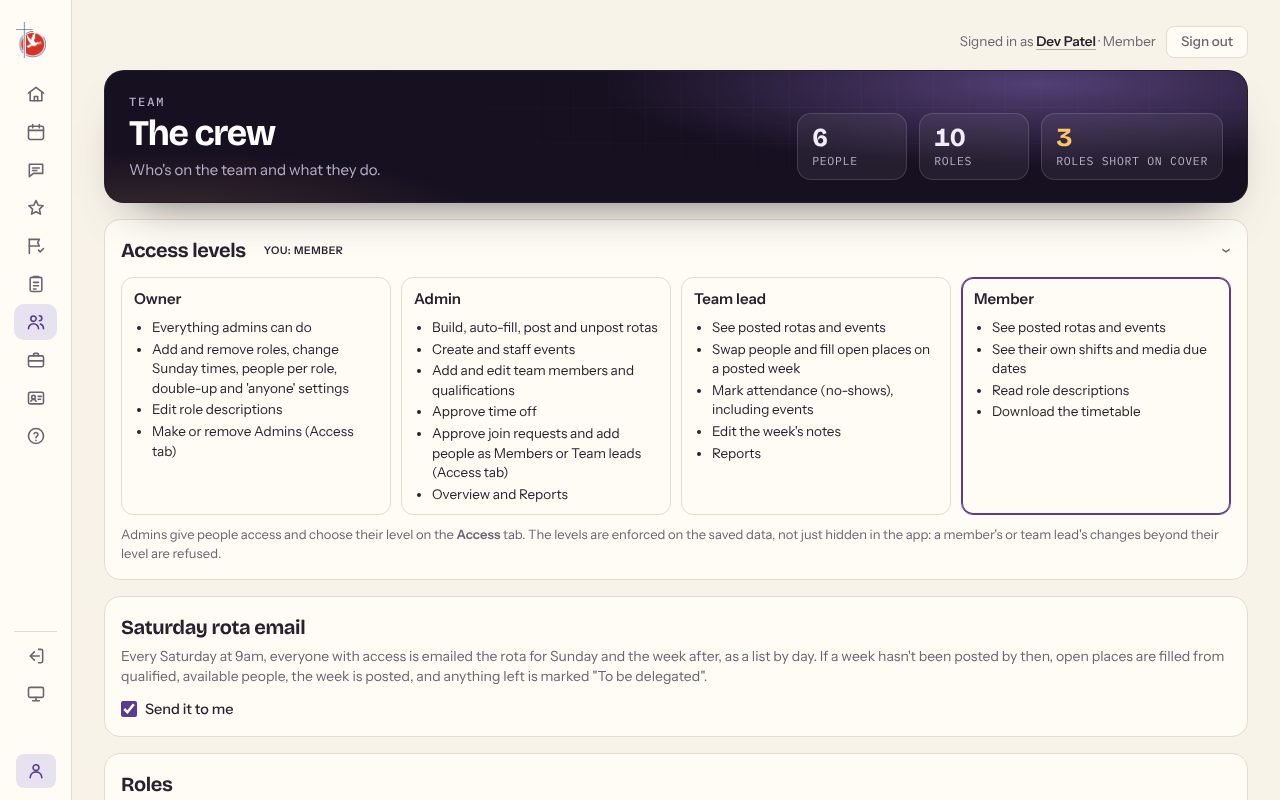
Part 6
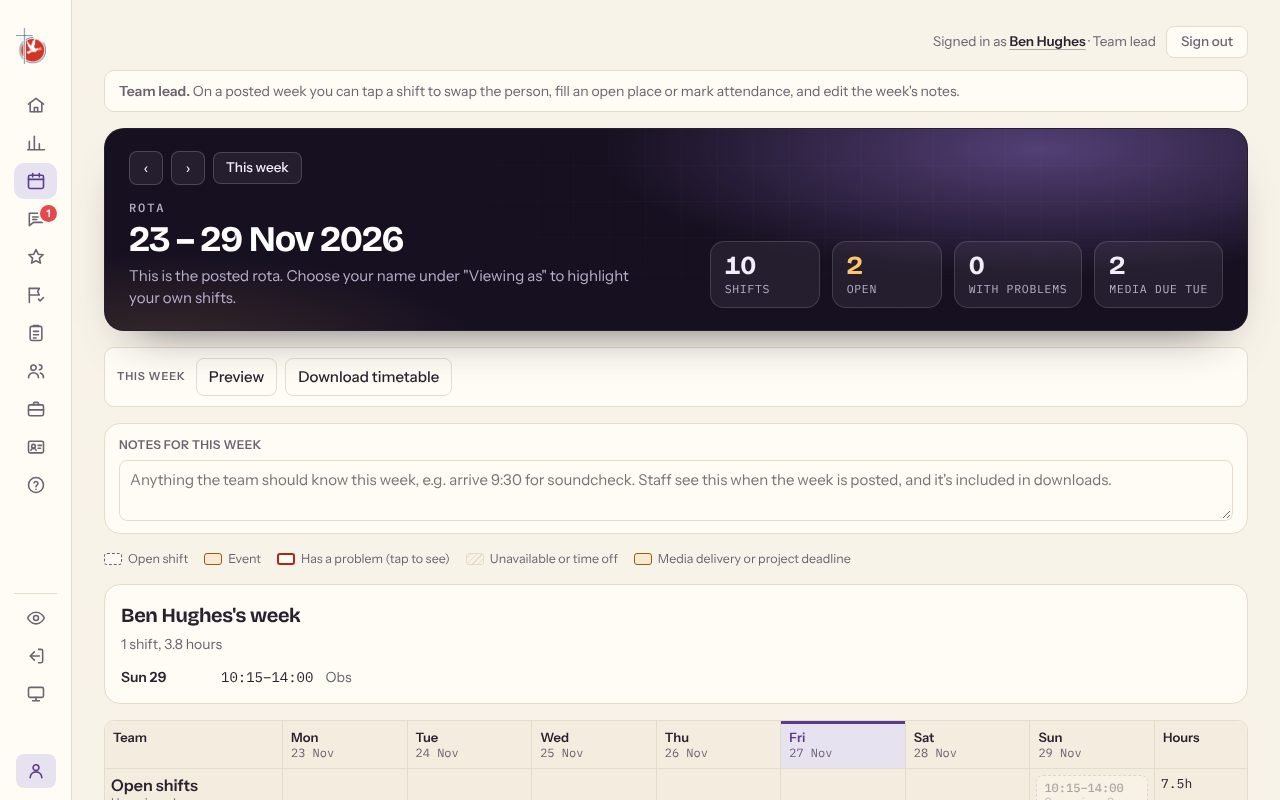
Team leads keep a posted week on track. Time, day and role stay as an admin set them.
A posted week shows a Team lead banner, and you can edit the week's notes.
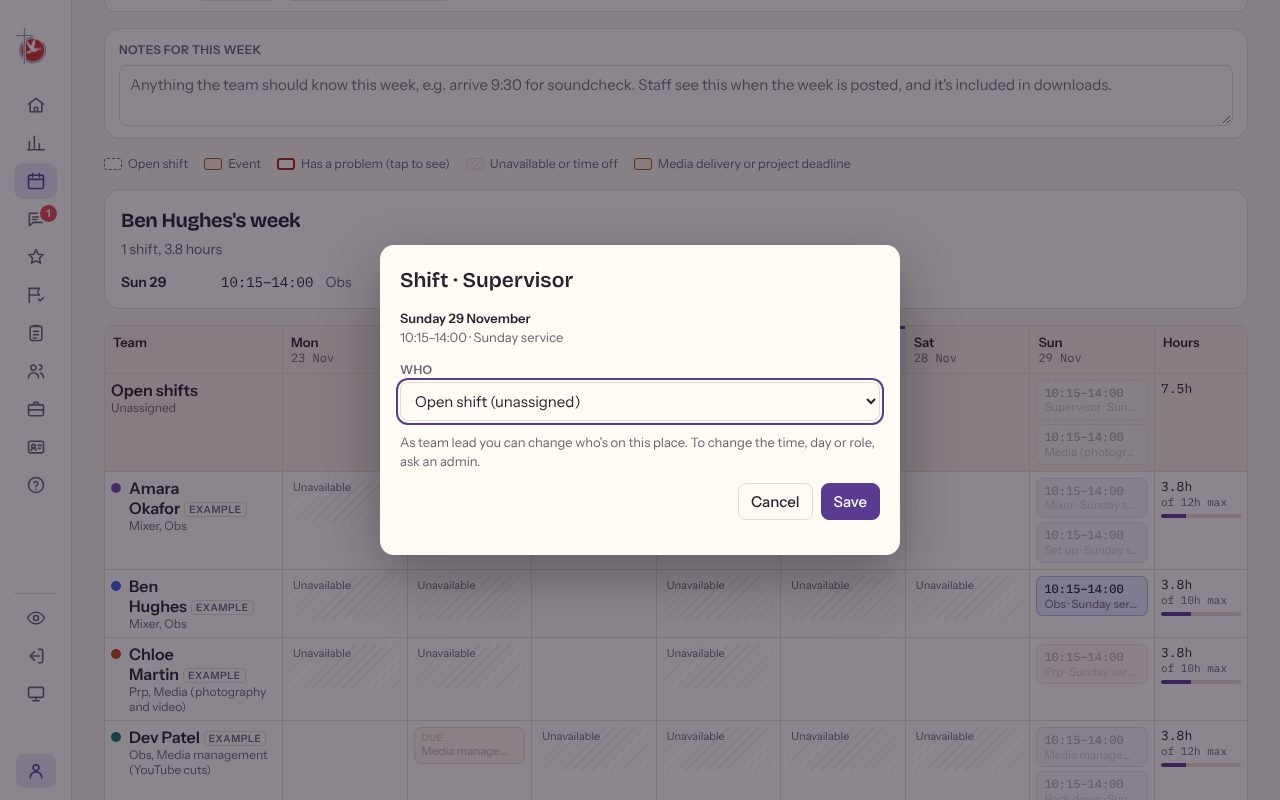
Tap a shift to change who's on it or fill an open place. Warnings show before you save if someone clashes or isn't available.
On Reports, everyone counts as attended. Tap a name to mark a no-show, including on event shifts.
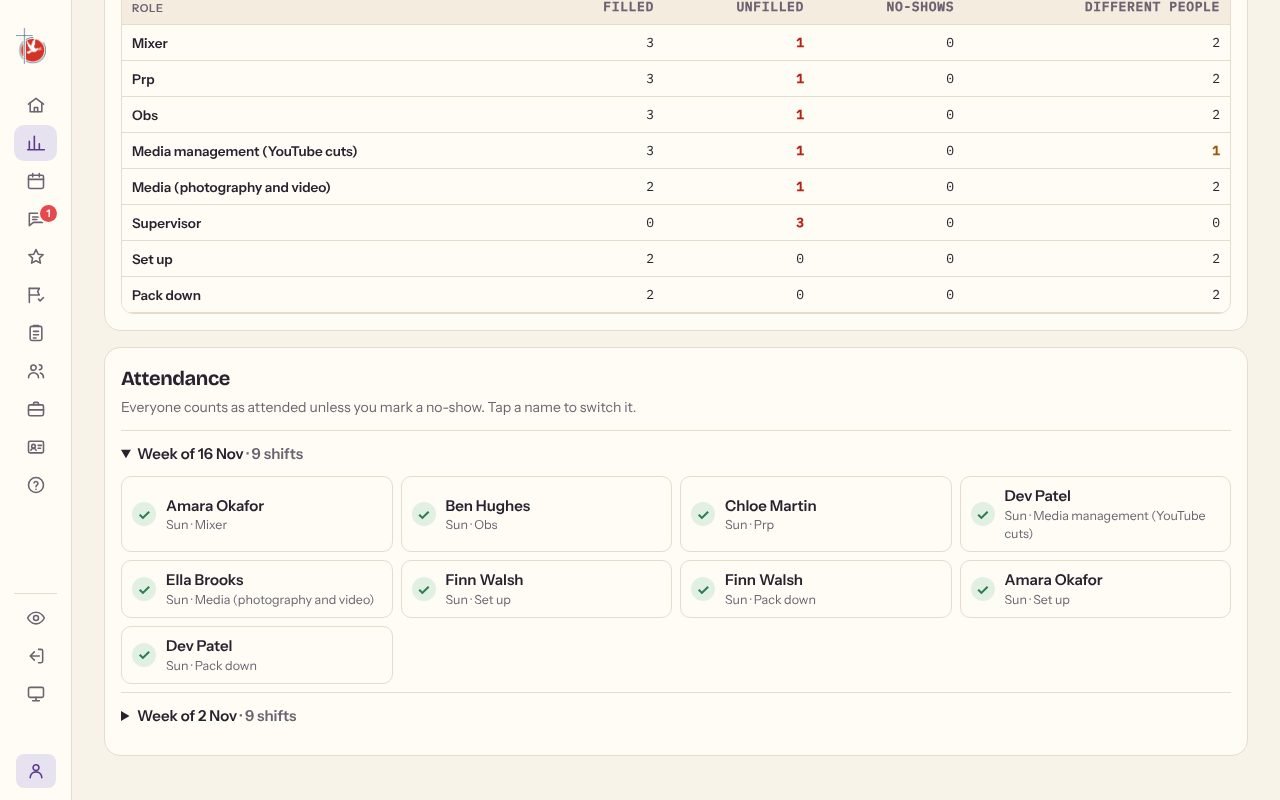
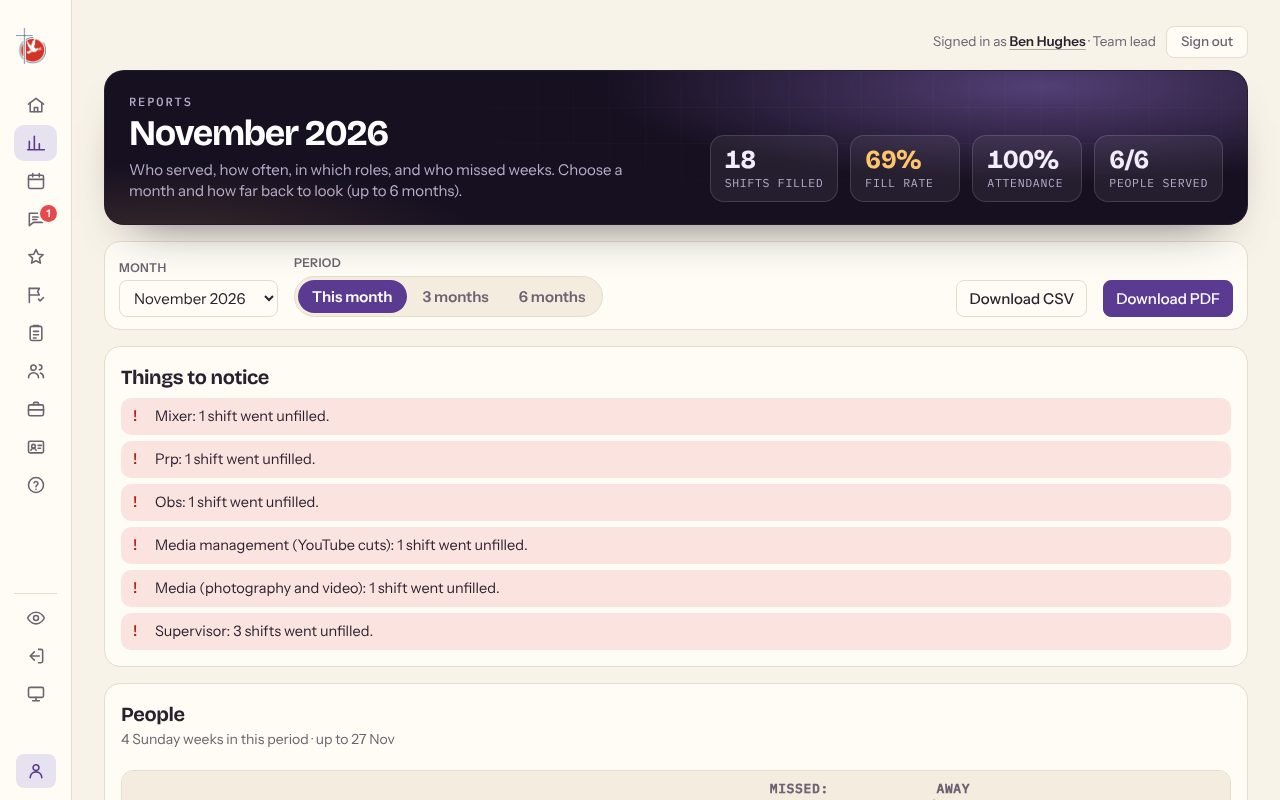
One month, 3 months or 6 months of who served, which roles, missed weeks and attendance. Download as CSV or PDF.
Part 7
Everything works on a phone. The menu moves to the bottom of the screen.
The same three ways in, laid out for a phone.

Sign out, Theme and Viewing as are at the top; the menu is along the bottom.

Your shifts and media due dates, then the rota one day at a time.

Screens show an example team, so names and dates won't match your week. Inside the rota, the Guide tab has the same steps for your own access level.