Step 1
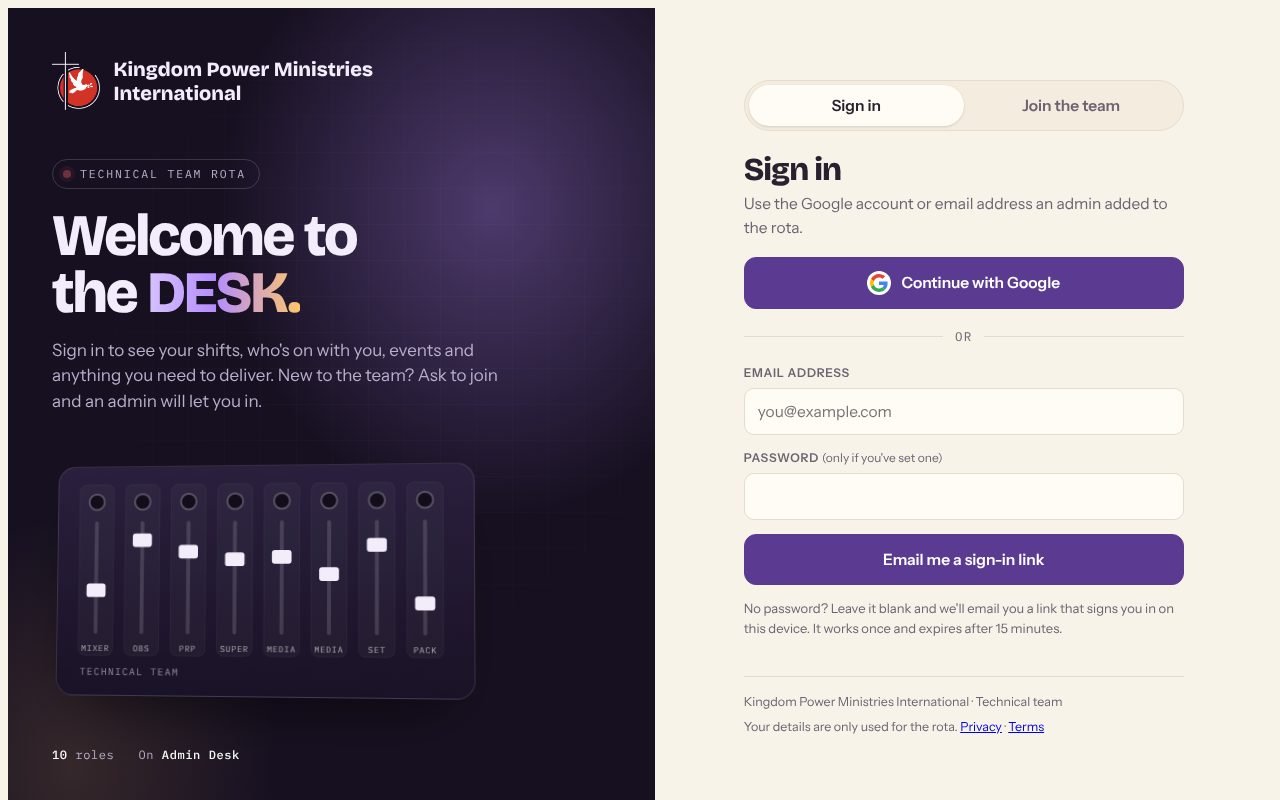
Sign in
Continue with Google, your email and a password if you've set one, or your email alone for a one-time link. See the member walkthrough for each step.
Admin walkthrough
A step-by-step tour for admins and owners: building, filling, posting and sharing a week, planning ahead, and looking after the team. Every screen is the real rota, shown with an example team.
Part 1
Admins sign in the same way as everyone else, and the rota recognises their level.
Continue with Google, your email and a password if you've set one, or your email alone for a one-time link. See the member walkthrough for each step.
Part 2
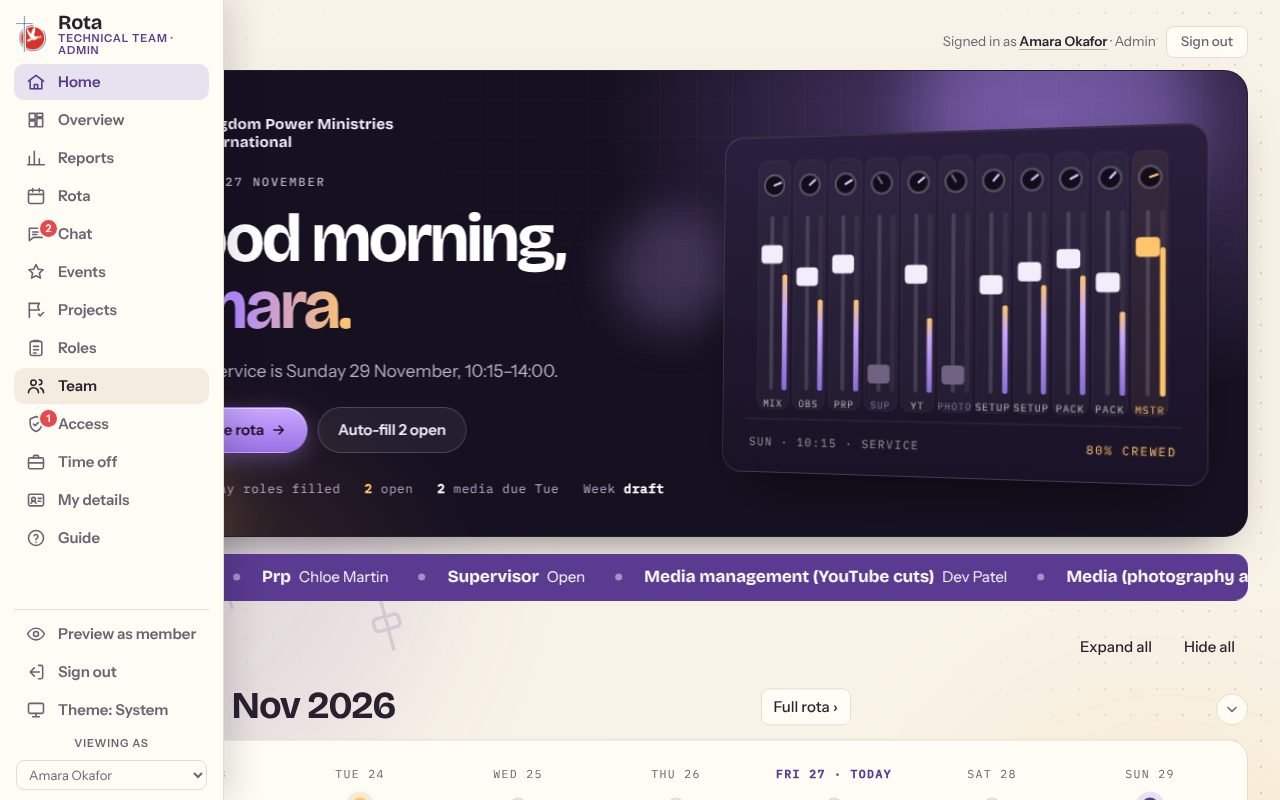
Home sums up the week, with admin shortcuts.
While a week is still a draft, the stage offers Auto-fill and shows how many Sunday roles are filled and how many are open. Home also shows draft weeks and events before they're posted.

Admins also get Overview and Access. At the bottom of the menu, Preview as member shows exactly what the team sees.
Part 3
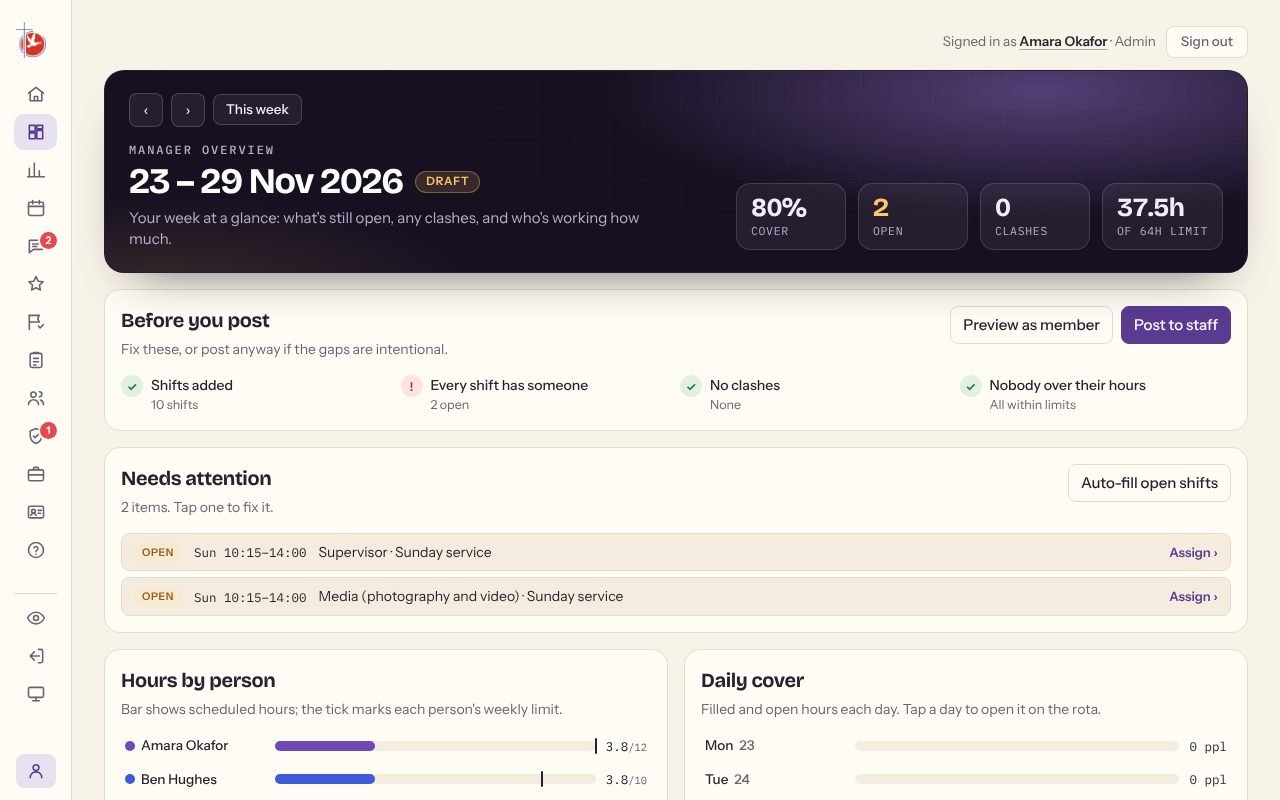
Check, fill, post, share.
Before you post runs the checks: shifts added, everyone assigned, no clashes and no one over their hours. Needs attention lists each open place with an Assign button.
Sunday service shifts and monthly tasks are added for you. The week stays a Draft until you post it.
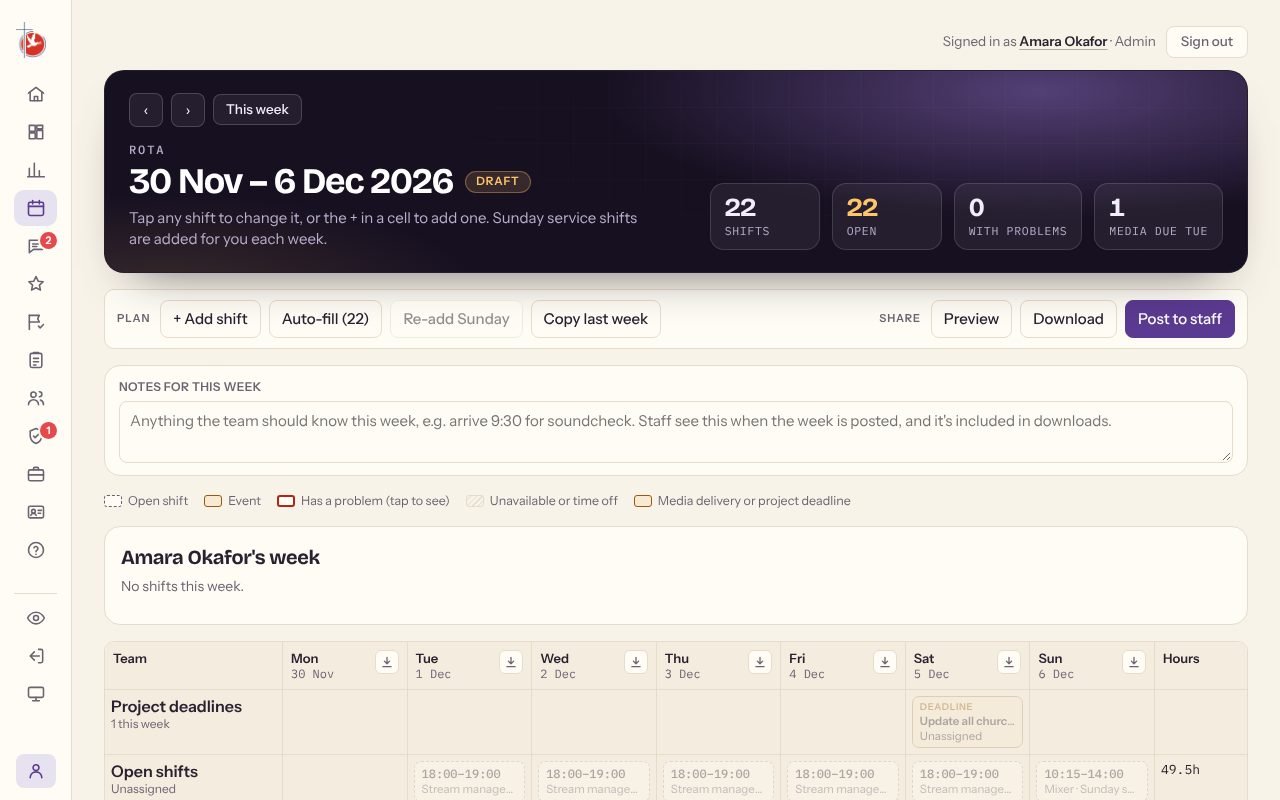
It fills places with people who are qualified, available and not on time off, and spreads the work out. Use Undo if you change your mind.
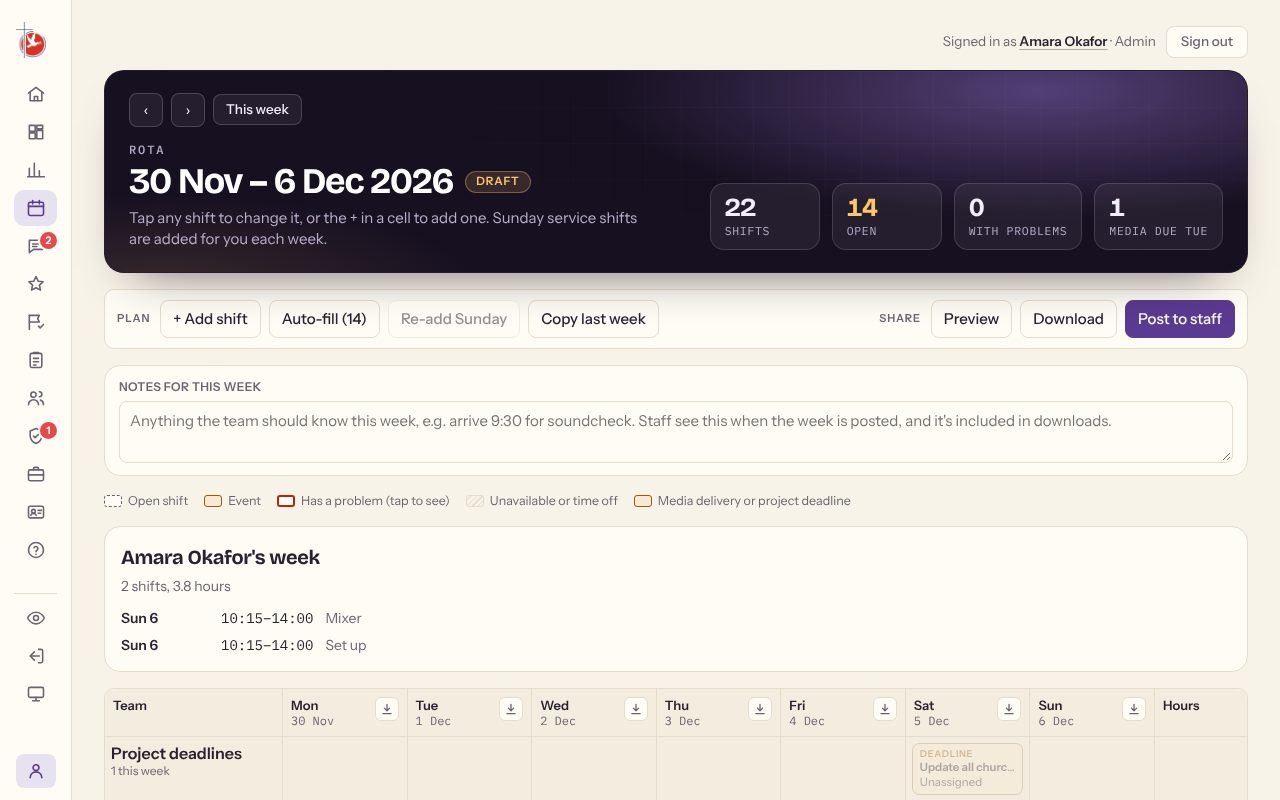
Change the person, day, times, role or note, or add a trainee. Clashes are flagged before you save.
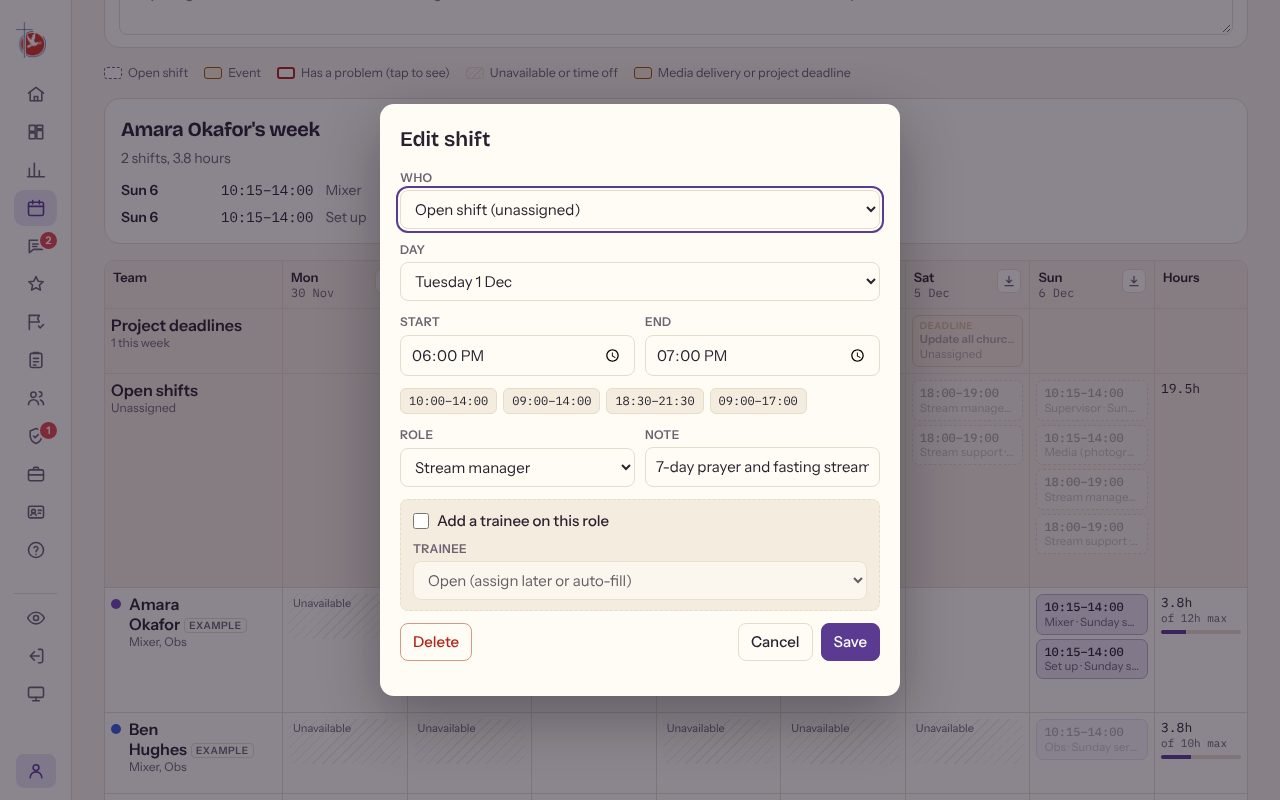
The team can see the week once it's posted; Unpost hides it again. If a week isn't posted by Saturday at 9am, Admin Desk fills and posts it for the Saturday email, marks any place it couldn't fill as To be delegated, and emails the owner and admins what it did.
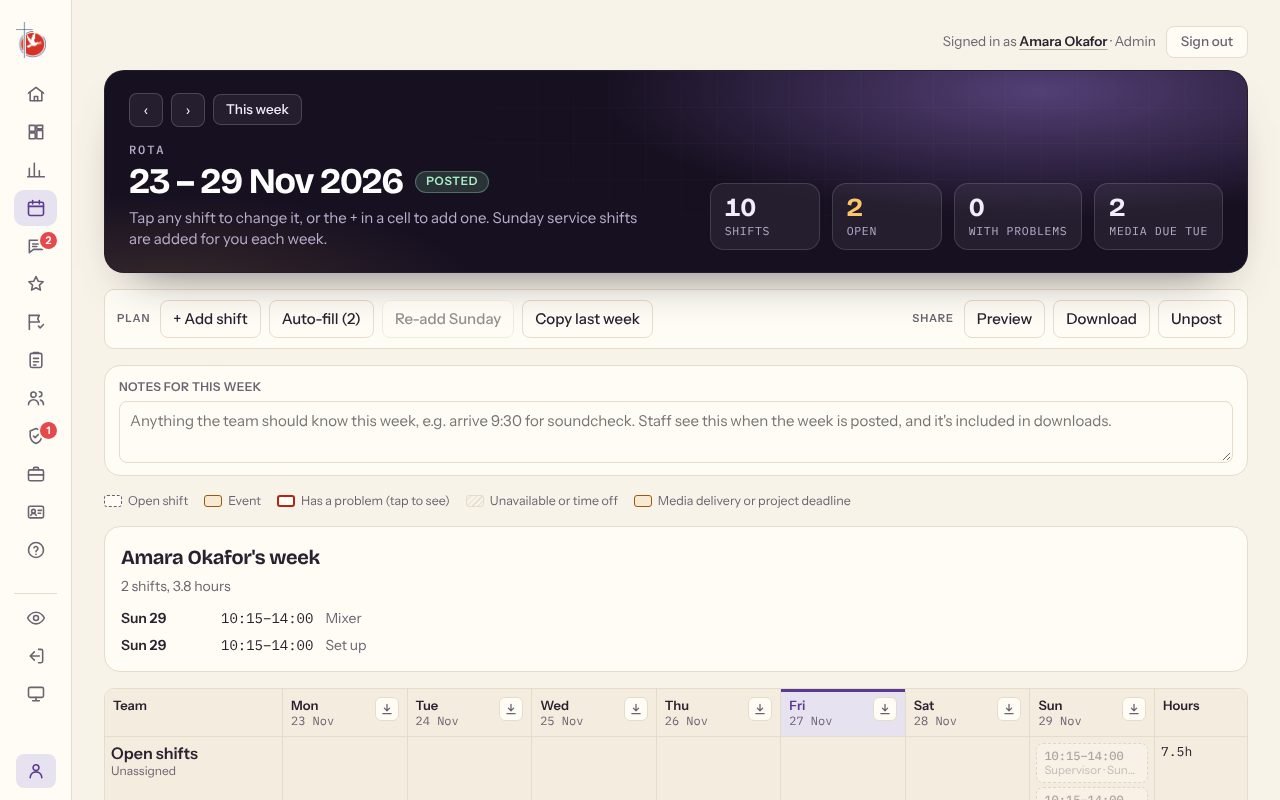
Download the week or a day as a PDF or CSV, or copy it as text for a group chat.

Part 4
Events and projects.
Use + New event. An event can run over several days, each with its own times and crew. Need a role that isn't on the list? Use Add a role just for this event. Auto-fill works here too, and the event stays a draft until you post it.
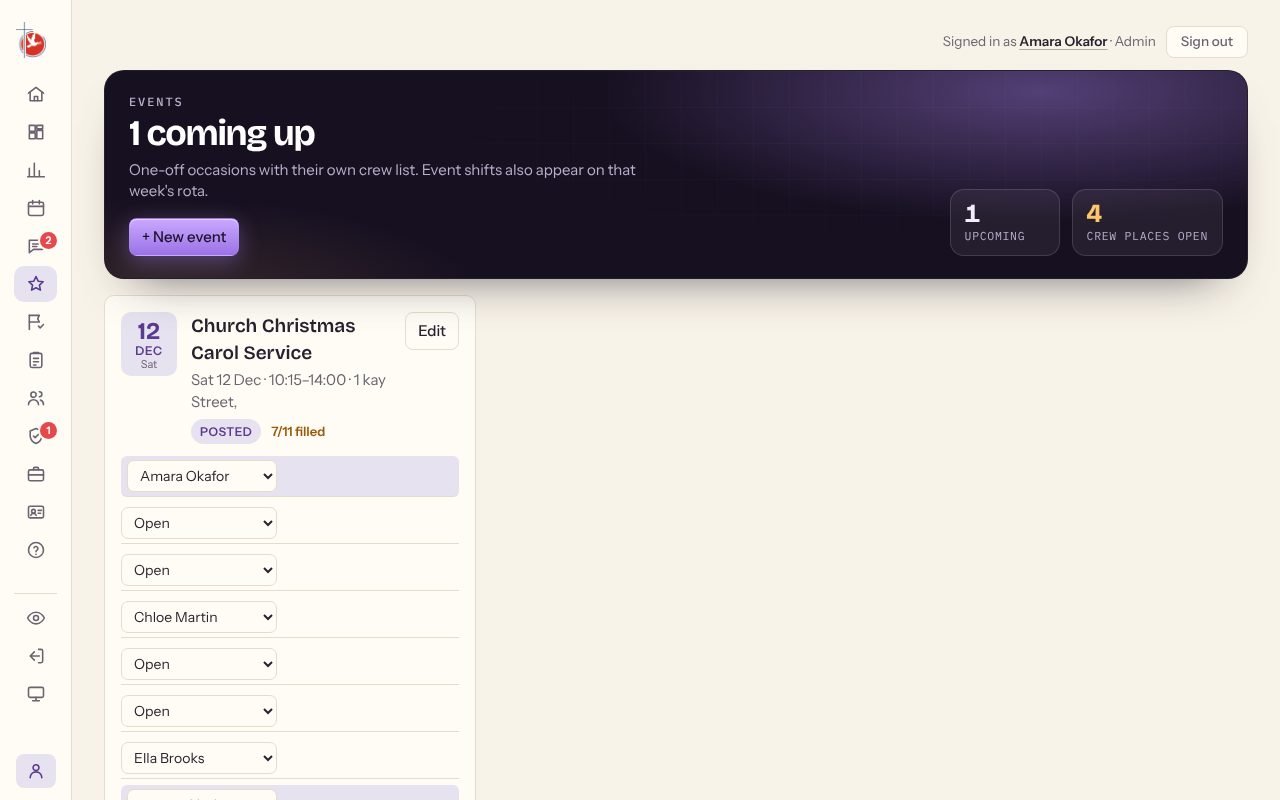
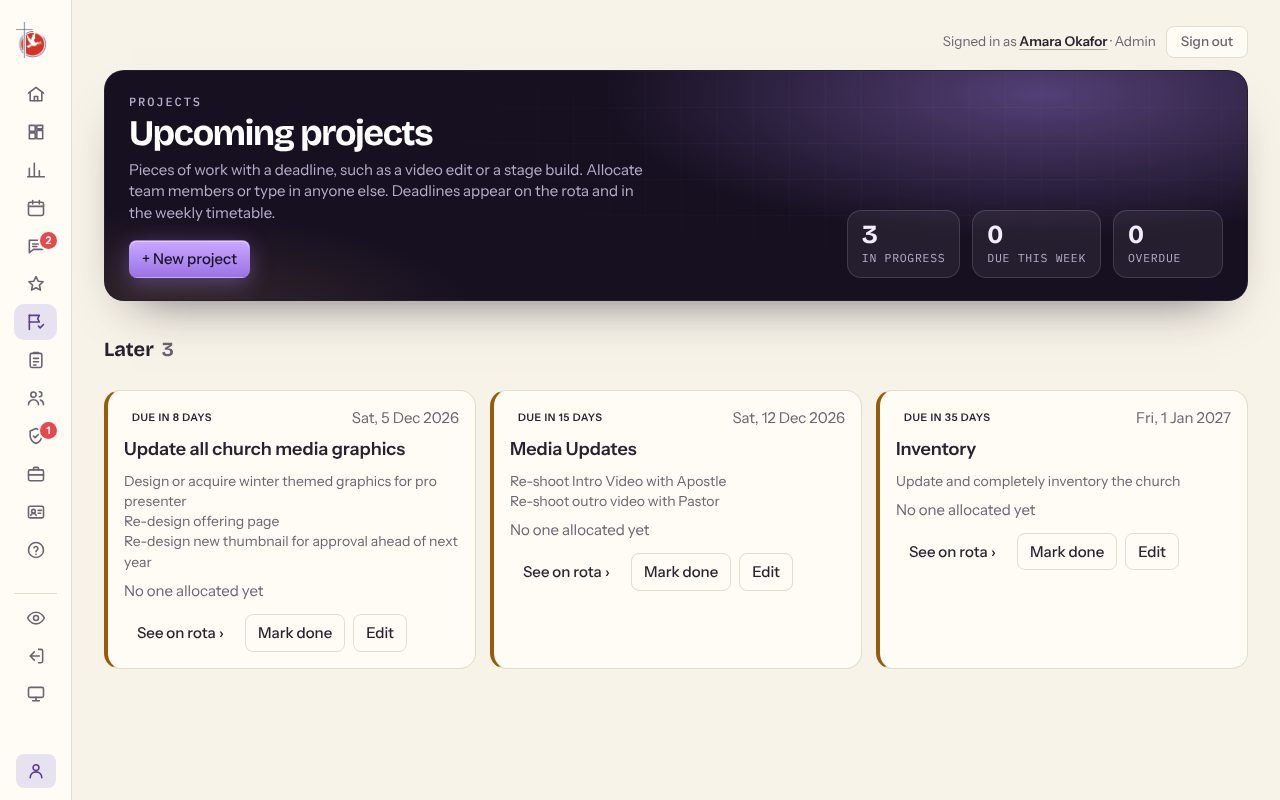
Admins get + New project, Edit and Mark done on every card.
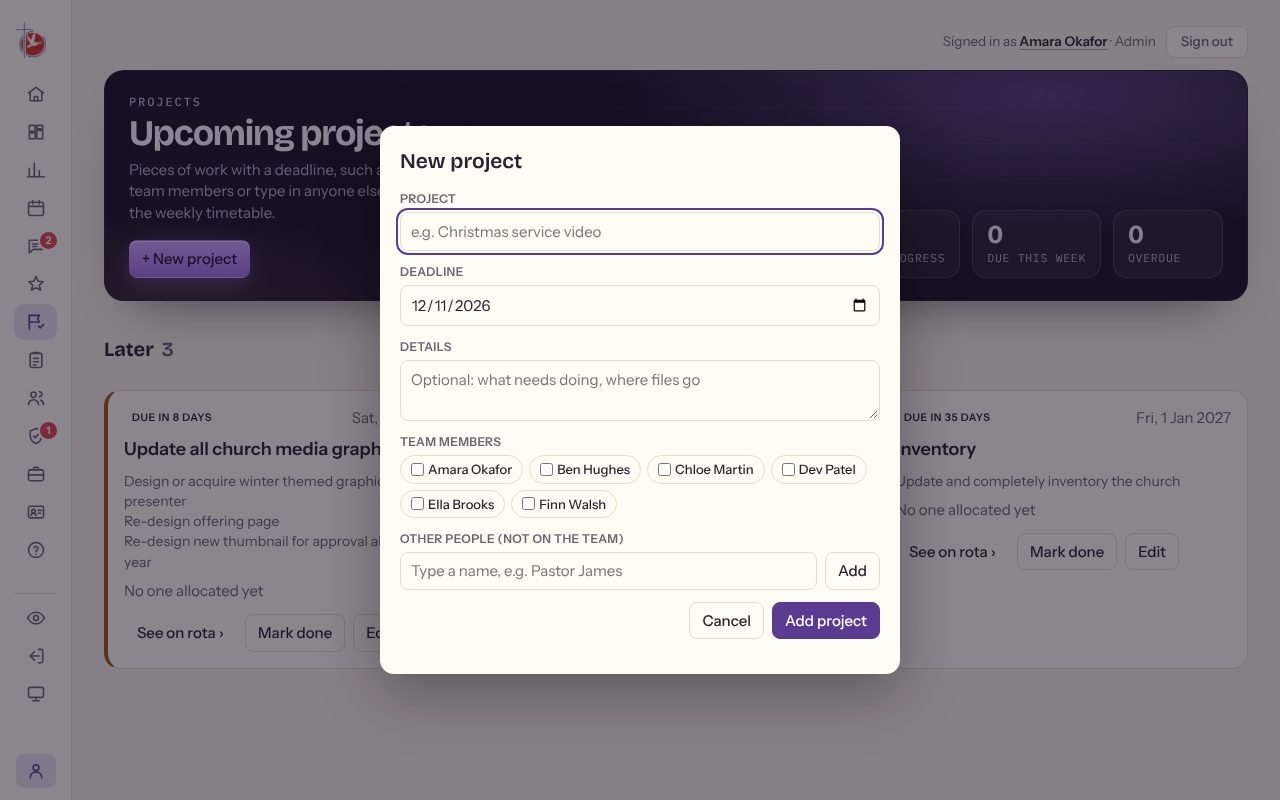
Tick team members and type in anyone else who's helping. The deadline appears on that week's rota and in downloads.
Part 5
Who can sign in, what they can do, and when they're away.
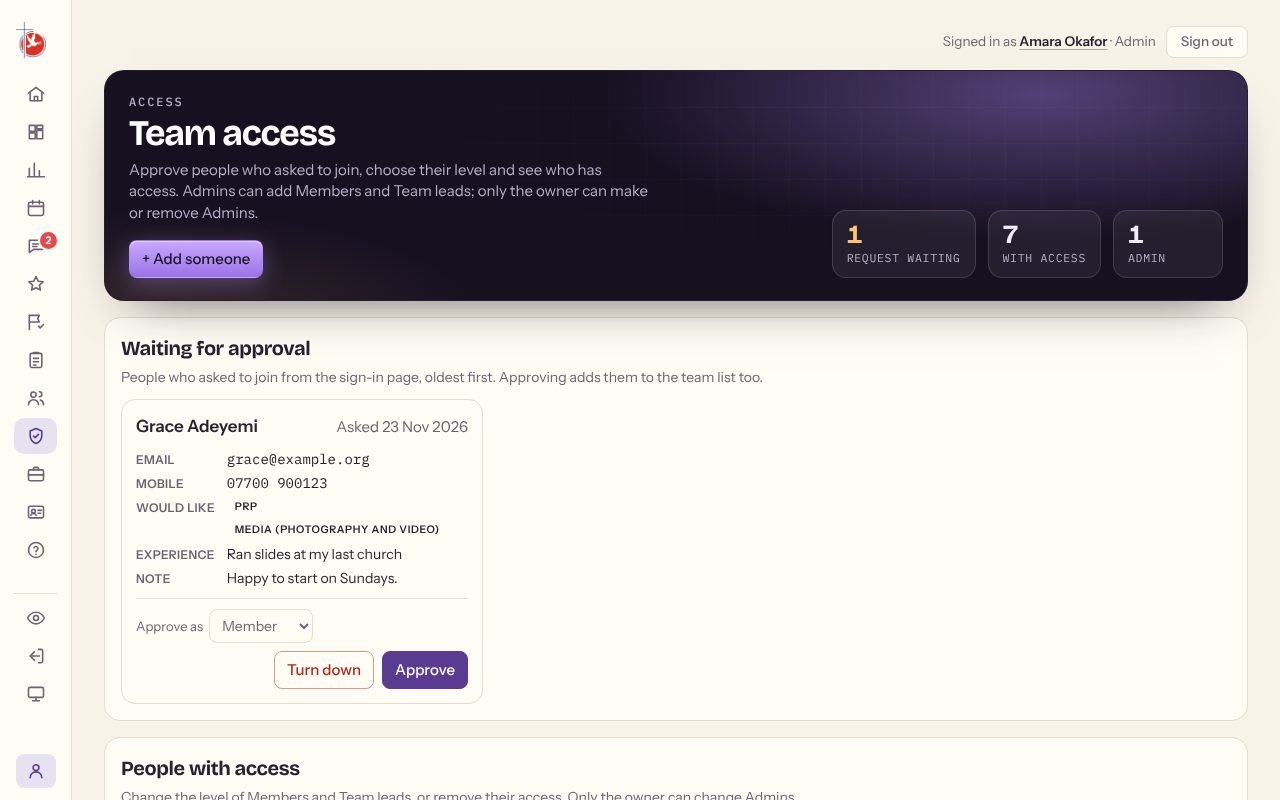
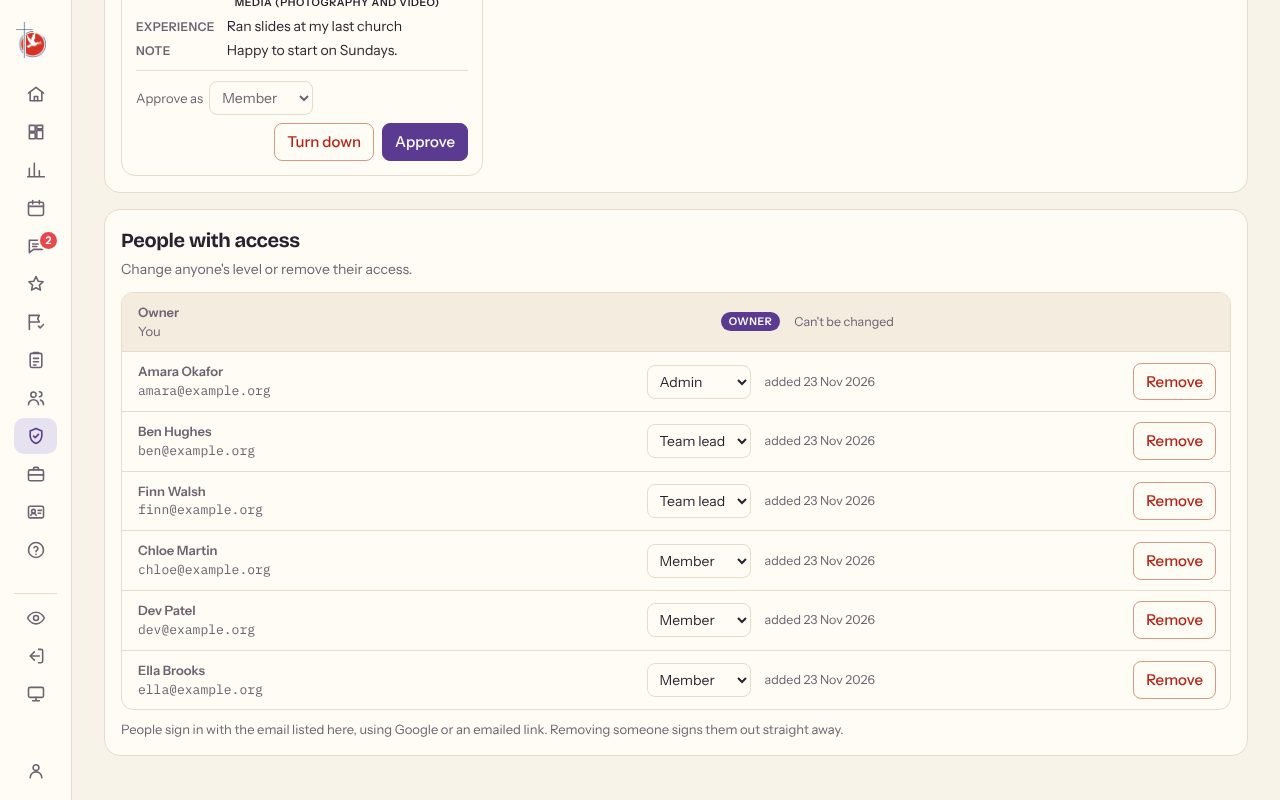
Requests from the Join the team form wait on the Access tab, with the details people gave. Choose their level and Approve: they're added to the team and emailed how to sign in. + Add someone gives access straight away. Admins can add, change and remove Members and Team leads; removing someone signs them out at once.
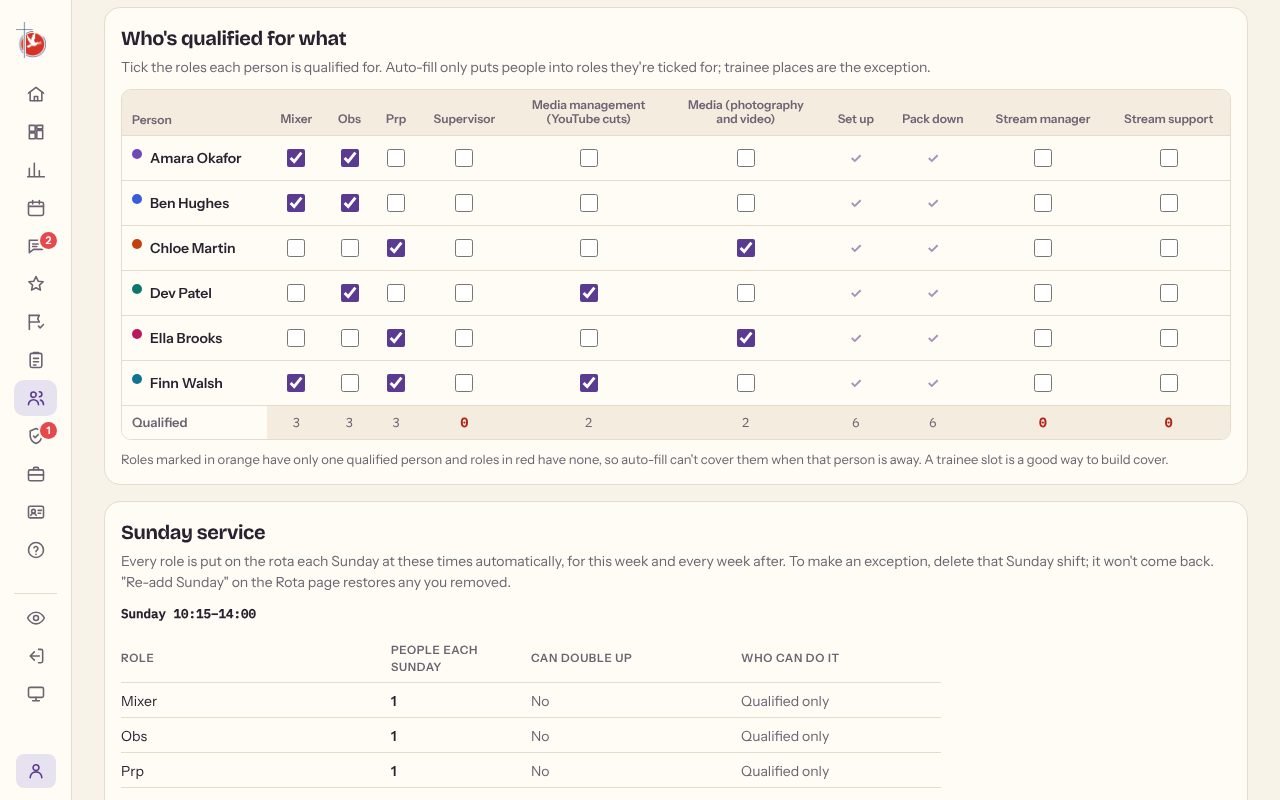
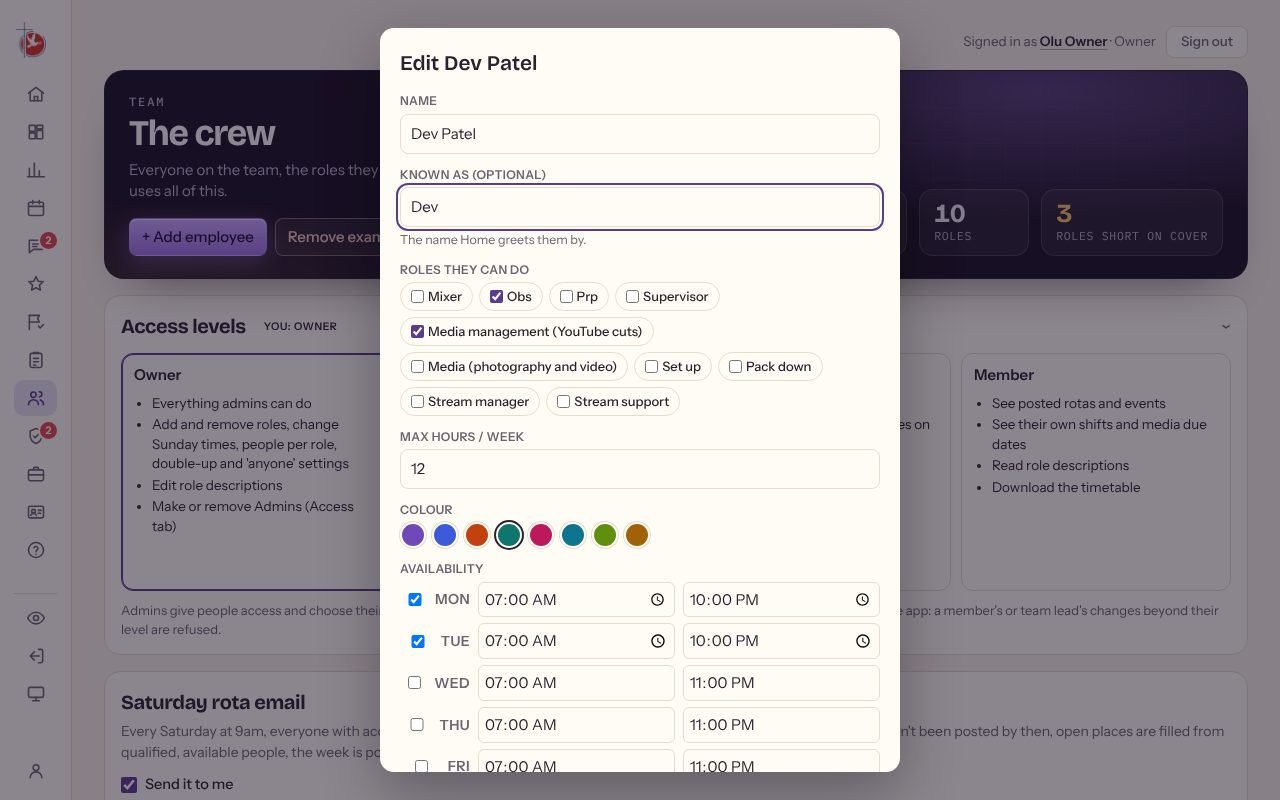
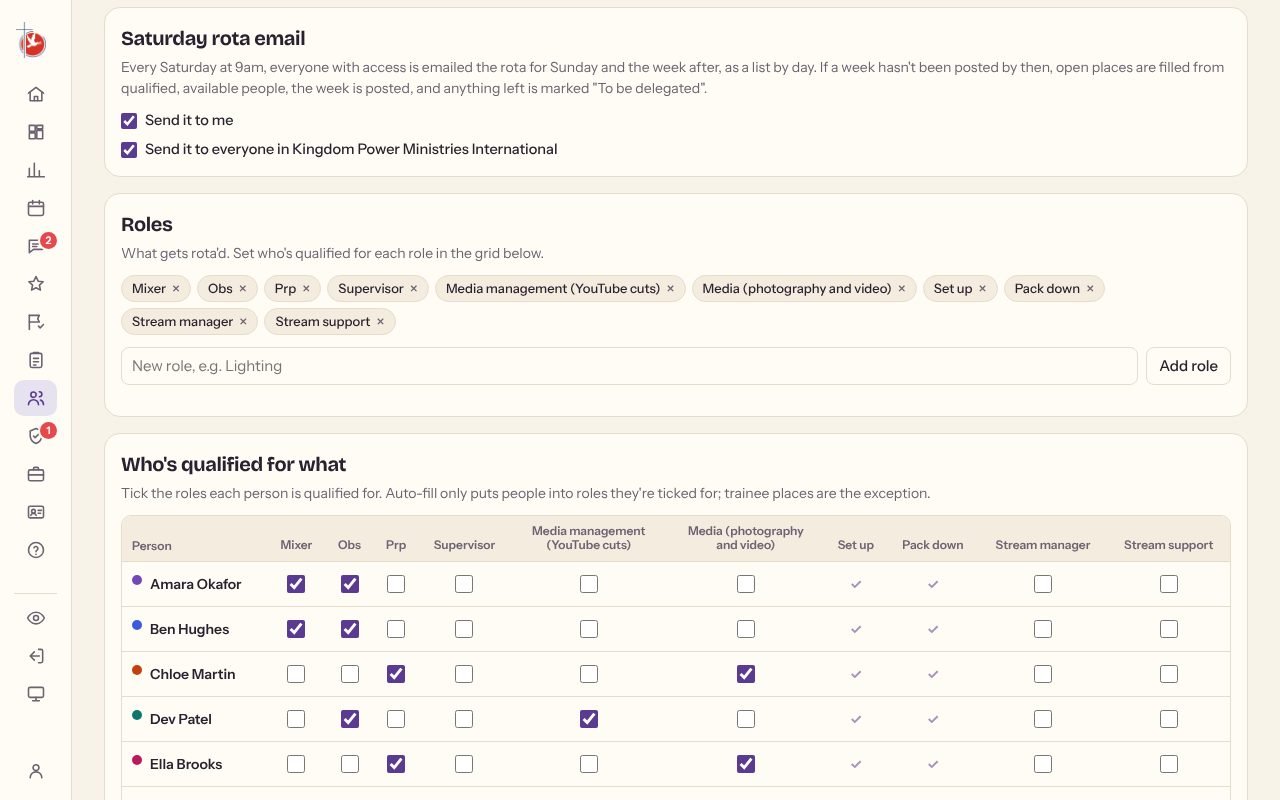
Add and edit people, their weekly hours and availability, and tick their qualifications. Auto-fill only uses people who are ticked for a role. Role cards also show Admins only notes that team leads and members never see.
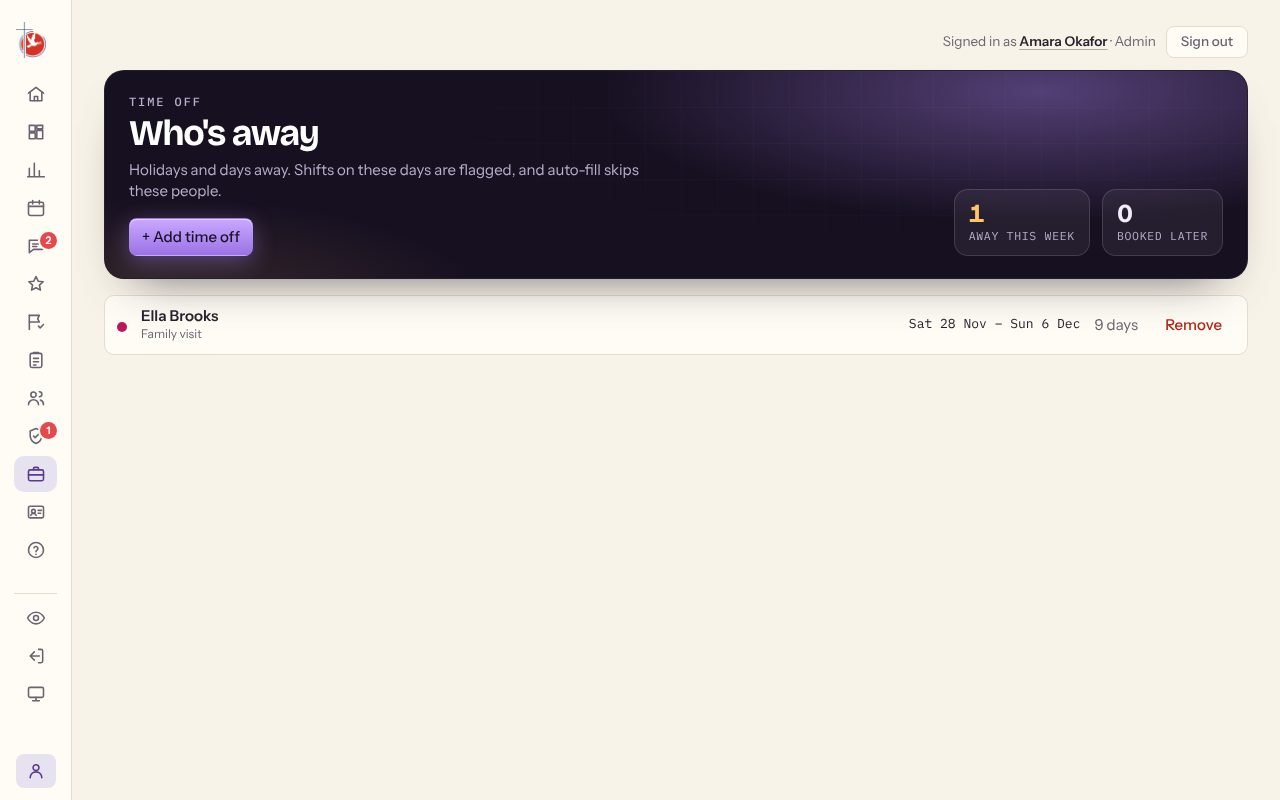
Use + Add time off when someone tells you they're away. Clashing shifts are flagged and auto-fill skips that person.
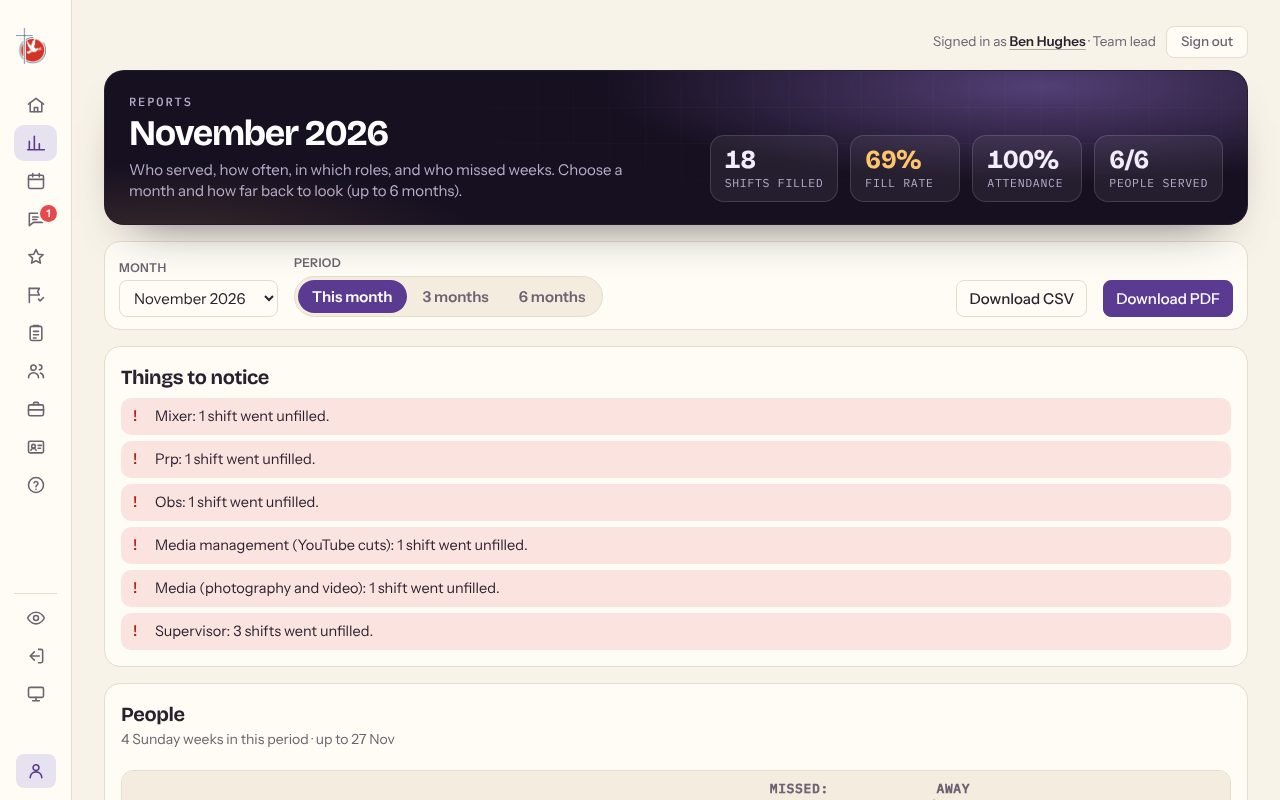
One month, 3 months or 6 months of who served, which roles, missed weeks and attendance. Download as CSV or PDF.
Part 6
Settings only the owner can change.
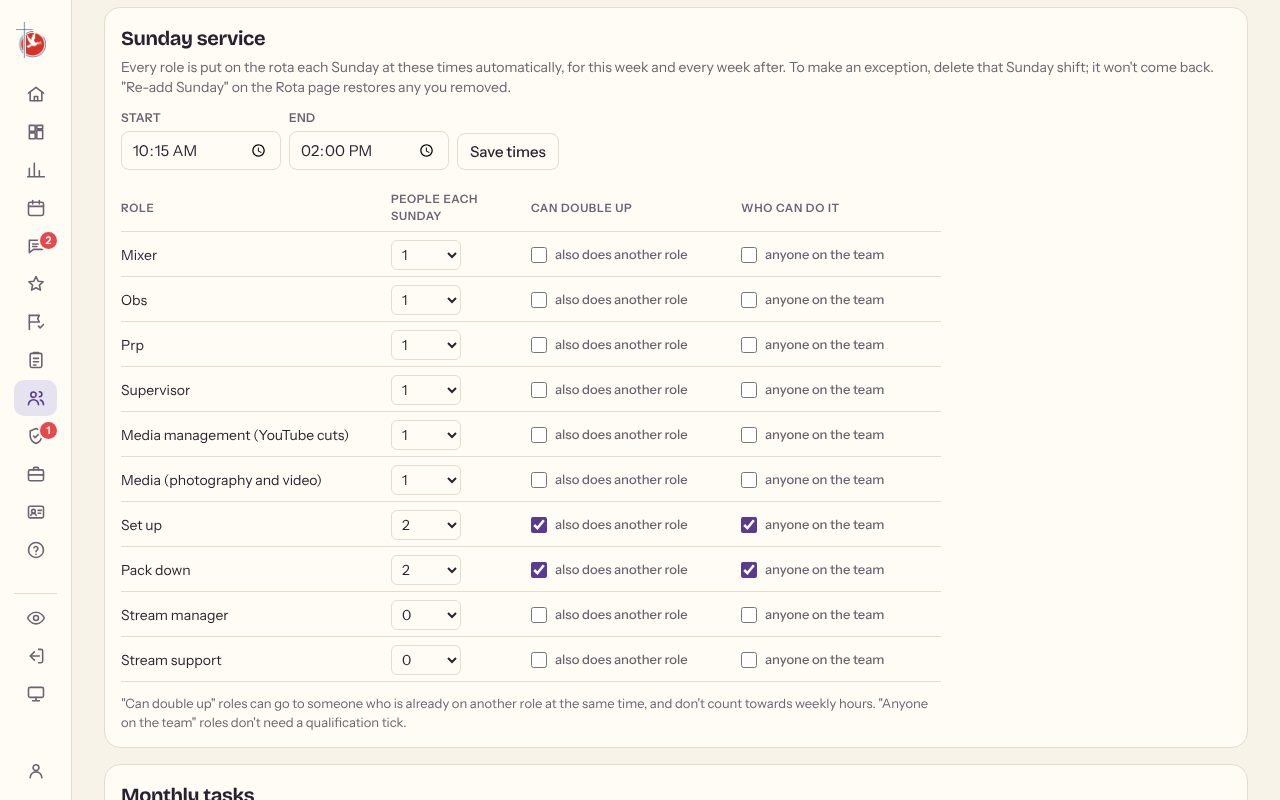
On the Team page, set Sunday service times, how many people each role needs, which roles can double up and which anyone can do, and the Monthly tasks such as the prayer and fasting stream.
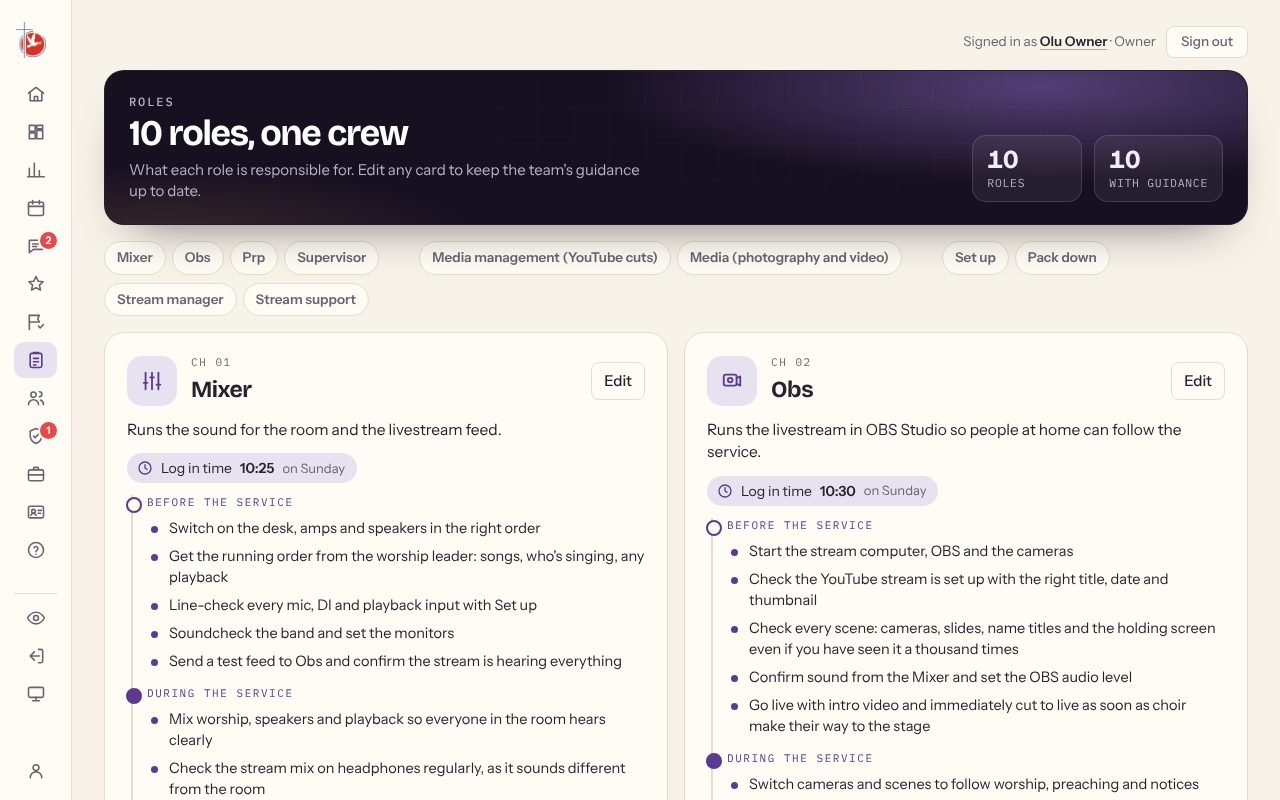
Add or remove roles on the Team page, and on the Roles page edit each role's description, log in time, group and Admins only note.
On the Access tab, only you can make someone an Admin, change an Admin's level or remove them.
People set the name they're known as when they join or on My details, and Home greets them by it. You can change anyone's on the Team page; admins can't change other people's.
Untick Send it to everyone on the Team page to stop the Saturday rota email for the whole team. That also stops weeks being filled and posted automatically.
Screens show an example team, so names and dates won't match your week. Inside the rota, the Guide tab has the same steps for your own access level.